The Bluetooth pairing process for gCAT4s with Classic Bluetooth (pre 2016) and for gCAT4's with BLE Bluetooth (post 2016).
The "Location Setting" needs to be "Enabled" on the mobile device otherwise the C.A.T serial number will not appear in the list of available devices when searching/pairing to a C.A.T.
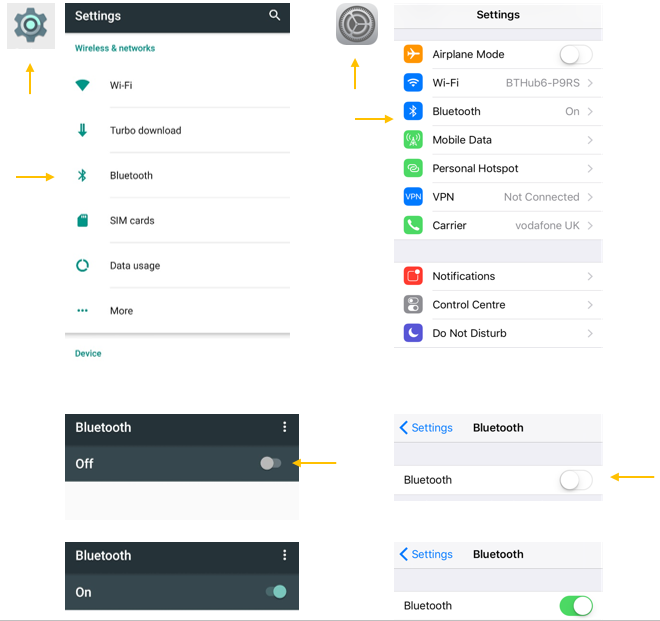
Turn On Bluetooth connectivity in the Android or iOS Bluetooth in the "Settings" screen. The screen will show all the devices which are already paired to your Android device.
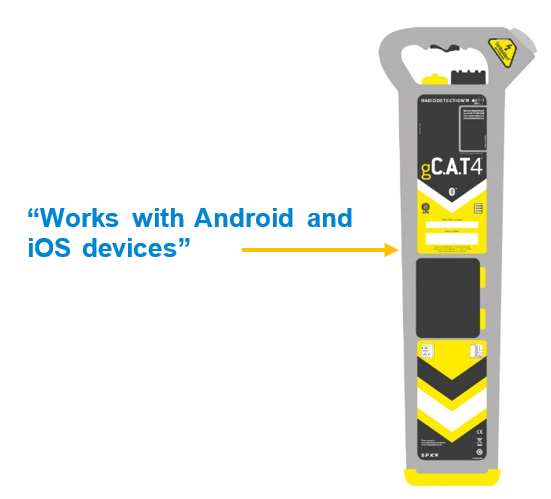
Does the gCAT4 offer Bluetooth 4.0 LE (Bluetooth Low Energy or BLE).?
You can determine this by checking for the presence of the “Works with Android and iOS devices” Bluetooth statement on the label on top of the gC.A.T4 battery compartment.
The Classic CAT pairing behavior is different from the BLE CAT:
Classic CAT: Only works with Android devices
- Set the gC.A.T4 in pairing mode:
- Pull the gC.A.T4 trigger to switch it on, release the trigger
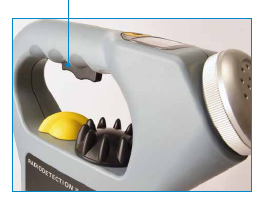
- Press and hold the "Depth" button
- After 8 seconds the screen will flash a 5 seconds a Bluetooth (bt) countdown and beep for the last 3 seconds - The Bluetooth icon will start flashing on the screen -The gC.A.T4 is ready for pairing.
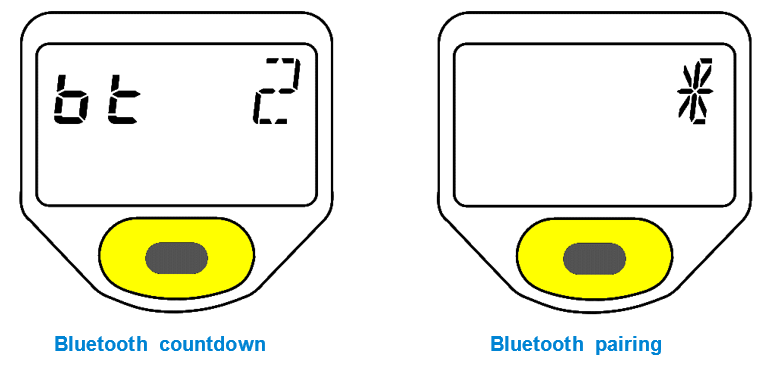
- Release the "Depth" button.
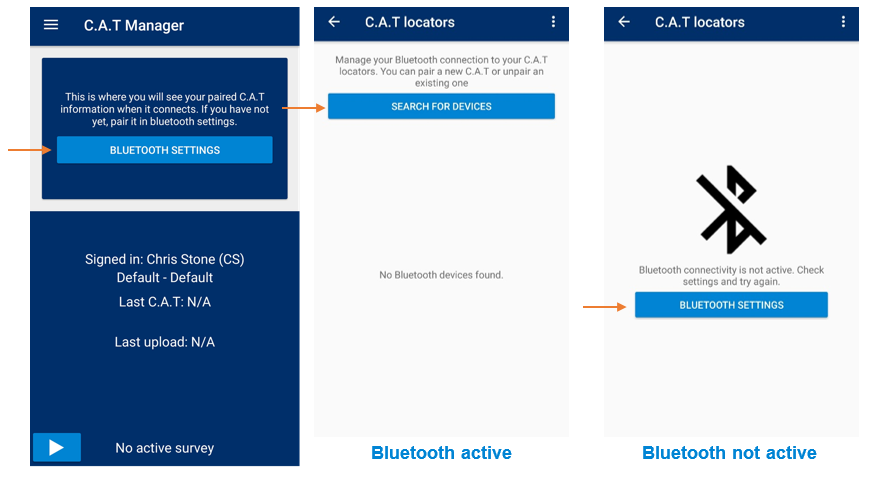
- On the app, Select "BLUETOOTH SETTINGS" to enter the "C.A.T locators" screen followed by "SEARCH FOR DEVICES".
When your gC.A.T4 serial number appears on the screen, select it by tapping on it.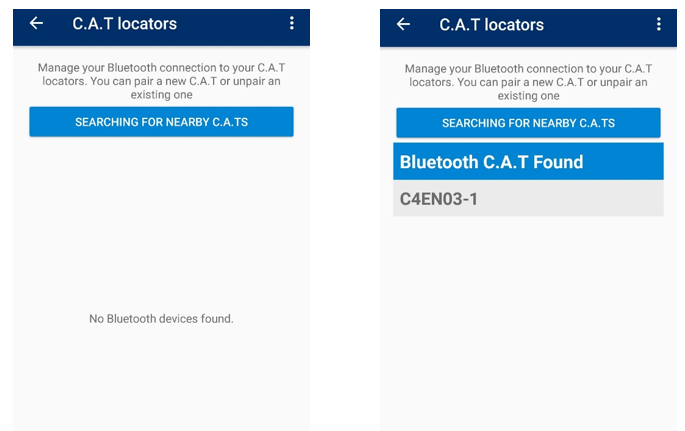
Depending on the Bluetooth connectivity type of your gC.A.T4 you may be requested to enter a pairing code. If this is the case enter 1234 and press OK.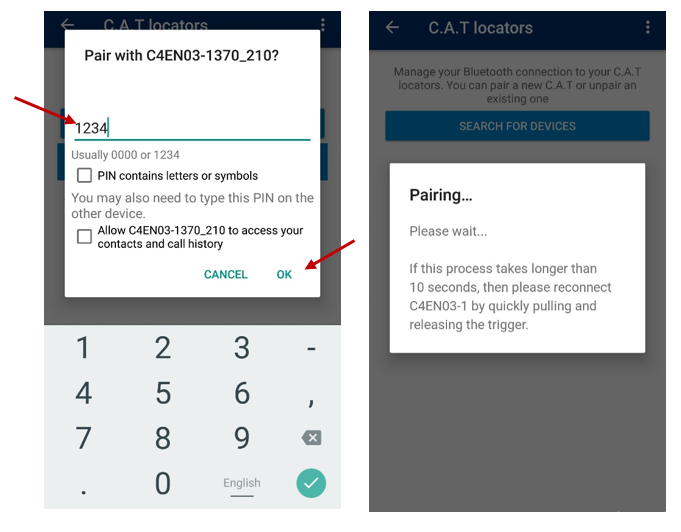
Once the CAT and mobile device are successfully paired, the gC.A.T4 will emit a double tone sound and your gC.A.T4 serial number will be on the list of paired C.A.Ts.
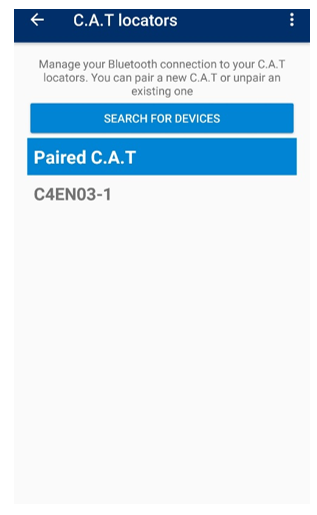
- On the app, Exit the "C.A.T locators" screen by pressing the 'Back' icon on the screen’s top left corner
The gC.A.T4 is now ready to use.
NOTE: You can only have 2 gC.A.T4 paired to your device at any time.
BLE CAT: Works with Android and iOS Devices
On the app, Select "BLUETOOTH SETTINGS" to enter the "C.A.T locators" screen followed by "SEARCH FOR DEVICES"
• Move CAT away from other paired mobile devices.
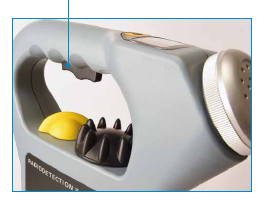
• Squeeze trigger, release.
• On the app, Tap on the serial number of the CAT as soon as it appears on the mobile app screen.
• This will begin the pairing process
• On the CAT, when screen has flashing 'Bluetooth' symbol, the CAT is in pairing mode.
• Once the CAT and mobile device are successfully paired, the gC.A.T4 will emit a double tone sound and your gC.A.T4 serial number will be on the list of paired C.A.Ts.
• On the app, Exit the "C.A.T locators" screen by pressing the 'Back' icon on the screen’s top left corner
If the CAT still does not pair check in the phone Settings that Bluetooth for CAT Manager hasn't been revoked and Allow the app to use Bluetooth.
The gC.A.T4 is now ready to use.
NOTE: You can only have 2 gC.A.T4 paired to your device at any time.
