This section introduces how to start PCMx Manager and describes its main screen and various features.
Starting PCMx Manager
To start PCMx Manager:
• Use the software icon on your desktop
or
- Go to the PCMx Manager folder in your programs section and select the PCMx Manager link. The PCMx Manager screen will appear.
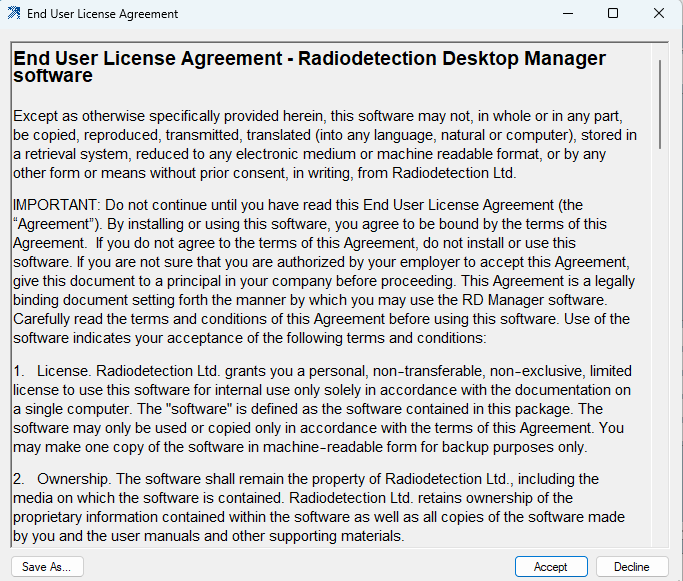
- On running PCMx Manager for the first time you will be presented with the EULA and will be prompted to Accept or Reject the terms before using the software.
- The PCMx Manager screen is divided into a main program area (organized into different Screen tabs) and a Message Pad area.
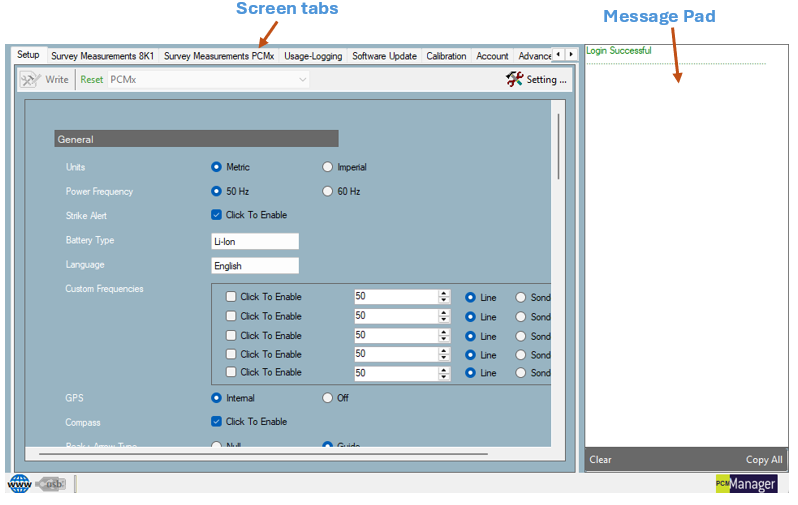
The number of Screen tabs depends if you are signed in or not. These are:
- Setup
Allows users to setup and customize connected locators. - Survey Measurements 8K1
Allows users to download and manage their Survey Measurements taken when the locator is 8K1mode. - Survey Measurements PCMx
Allows users to download and manage their Survey Measurements taken when the locator is in PCMx mode. - Usage Logging
Allows users with a locator equipped with internal automatic logging, to retrieve and manage their data. - Software Update**
Allows users to upgrade their locator’s software. - Calibration**
Allows users to retrieve the locator’s factory calibration certificate; also offers eCert functionality to perform a remote calibration validation and extend the calibration certificate for another year. - Account**
Allows users to manage their PCM Manager account, registering their products for extended warranties and send technical queries or service requests. - Advanced Setup*
Allows users to enable CALSafe, change the CALSafe date and synchronize the locator’s internal clock with Radiodetection’s UTC (Coordinated Universal Time) server.
* Only available if connected to the internet and signed in. The user must also have the privileged account feature enabled.
**Only available if connected to the internet and signed in.
At the top of the PCMx Manager screen there is the Toolbar giving access to programs menus and commands.
At the bottom of the screen there is the Status Bar.
Status bar
The Status Bar, is common to all the PCMx Manager screens. It displays the following properties:
• Internet Connection Status
• USB Connection Status
• Serial Number of Connected Unit
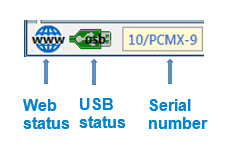
Status bar
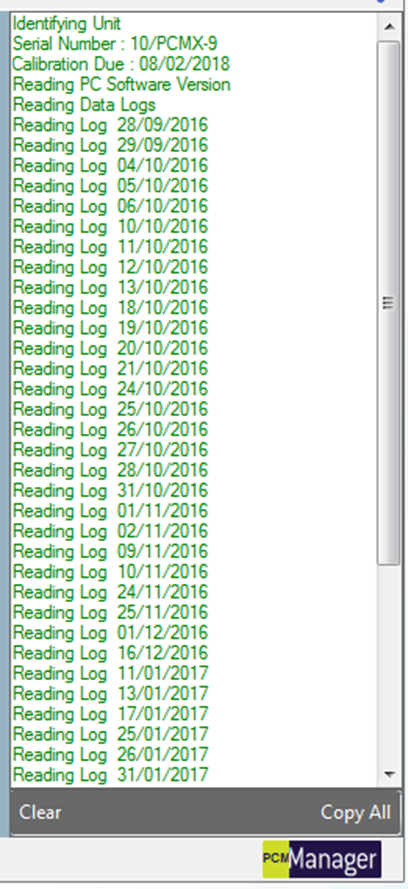
Message pad
The Message Pad, is common to all the PCMx Manager screens, and displays the system messages. The system messages are categorized as either:
• Information
• Warnings
• Errors
You can customize the color of the system messages.
Message pad commands
Clear
Clear the contents of the Message Pad.
Copy All
Copy the entire contents of the Message Pad to the system clipboard.
Message Pad