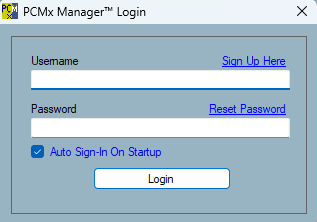
This article describes how to create and manage your PCMx Manager account. Registration is free of charge and it gives access to free software updates and e-mail alerts.
You can also use your PCMx Manager account to register your new PCMx locator to take advantage of the 2 years free of charge additional warranty.
About PCMx Manager Accounts
To take advantage of the full suite of PCMx Manager features, each user will need to complete the registration process. This only needs to be performed once.
When signing in for the first time you will be presented with the Privacy Policy document to either Accept, Decline and Save As.
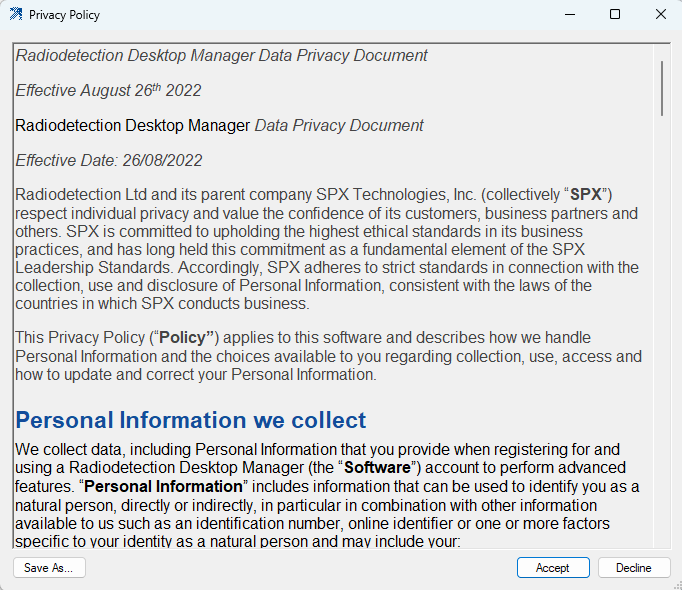
Registration allows operators to:
- Register your qualifying products (locator and transmitters only) for 2 years extended warranty.
- Receive warnings about software updates / upgrades as they are released.
- Install software updates.
- Run the eCert calibration process.
- Delete usage data. ‘Advanced Accounts’ only).
Creating a PCMx Manager account
To create a PCMx Manager account you must have a working internet connection.
1. Press the Sign In button on the PCMx Manager toolbar, the login screen will appear;
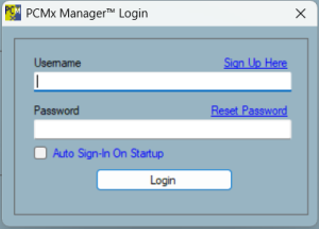
2. Click on Sign Up here.
3. Fill the account screen.
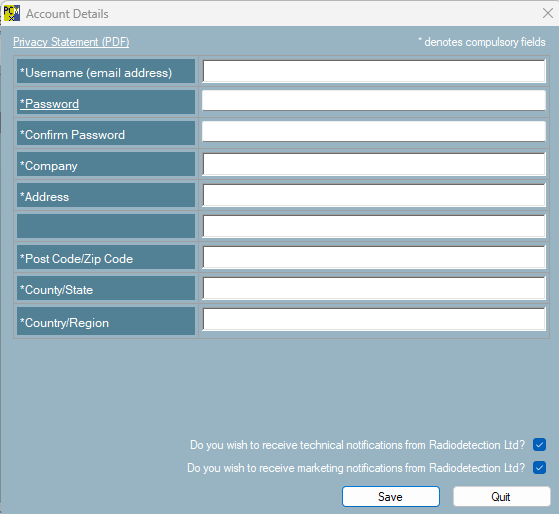
4. Press Save.
Your account will be created and PCMx Manager will sign you in.
NOTE: You can use the same login on any PC where PCMx Manager has been installed.
Signing Out
If you are using a shared PC, then to prevent other users from accessing your PCMx Manager account you should sign out from your account by pressing the Sign Out button on the toolbar.
Signing in to your account
To sign in to your account press the Sign In button on the PCMx Manager toolbar.
Auto Sign in to your account
Auto Sign-In On Startup allows you to automatically sign in to your account without having to enter your sign in details every time you close and re-open the application.