Locate assurance allows your supervisors to receive alerts when a locate session has been completed outside of the thresholds your management team have put in place.
The supervisor is able to take action to alleviate the alert and then assign a final resolution to each alert.
That information is instantly available to your supervisors as soon as the technician uploads. It is important to ensure that those alerts have been resolved timely and with the appropriate follow through.
First sign in to your dashboard and click on the Alerts tab on the left hand side of the side menu.
 |
Alerts tab |
Set the Date Range and filter for the Team that you wish to view.
You will notice that many of the categories can be placed in ascending and descending order.
If a resolution has been completed for a session it will appear in the Actions column.
To view a resolution for a session, simply click on RESOLUTION
and the information along with the date and time the resolution was closed is displayed.
This allows you to see when the alert was first recognized and ensure that the resolutions are being completed in a timely manner.
Locate Assurance has been designed to assist your supervisors in helping technicians achieve their full potential and give you as a manager, the ability to ensure proper follow up is taking place.
A supervisor will sign in to their dashboard and then select the date ranges.

The alert for that time frame and selected individuals will instantly populate.
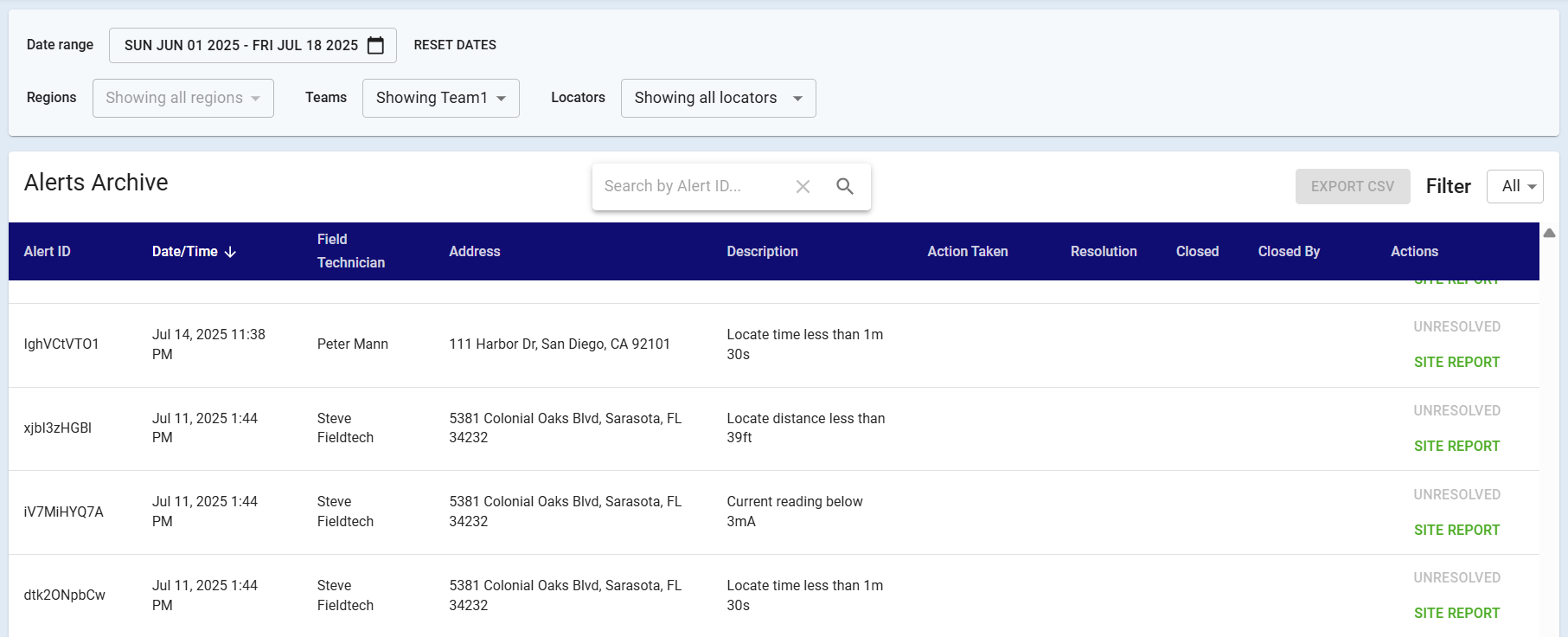
A quick overview of alerts is possible by clicking on each alert.
You can also decide how many rows per page you want to see.
When you need to dig a bit deeper take note of the alert type. e.g. for a low score and click to view the site report.

You may like to call the technician to discuss the abnormally and once the call is done you can report your findings and the action taken back at the dashboard.
This is done by clicking on Resolve and choosing the result for action taken.
If your not ready to close an alert you can put it in Progress by choosing an action taken and clicking 'Save'. The note on that will be labelled as 'In Progress' until the technician has returned to the site and determined what the final result for that will be.
When a final resolution has been determined choose the response from the list, add comments (optional) and click Confirm.
You will notice that the Alert is instantly removed from the page.