UTTO MyRD LPM records locate surveys in sessions.
NOTE: The 'UTTO MyRD LPM' app currently supports only one utility per session.
To start a utility locate session in UTTO MyRD LPM, follow these steps:
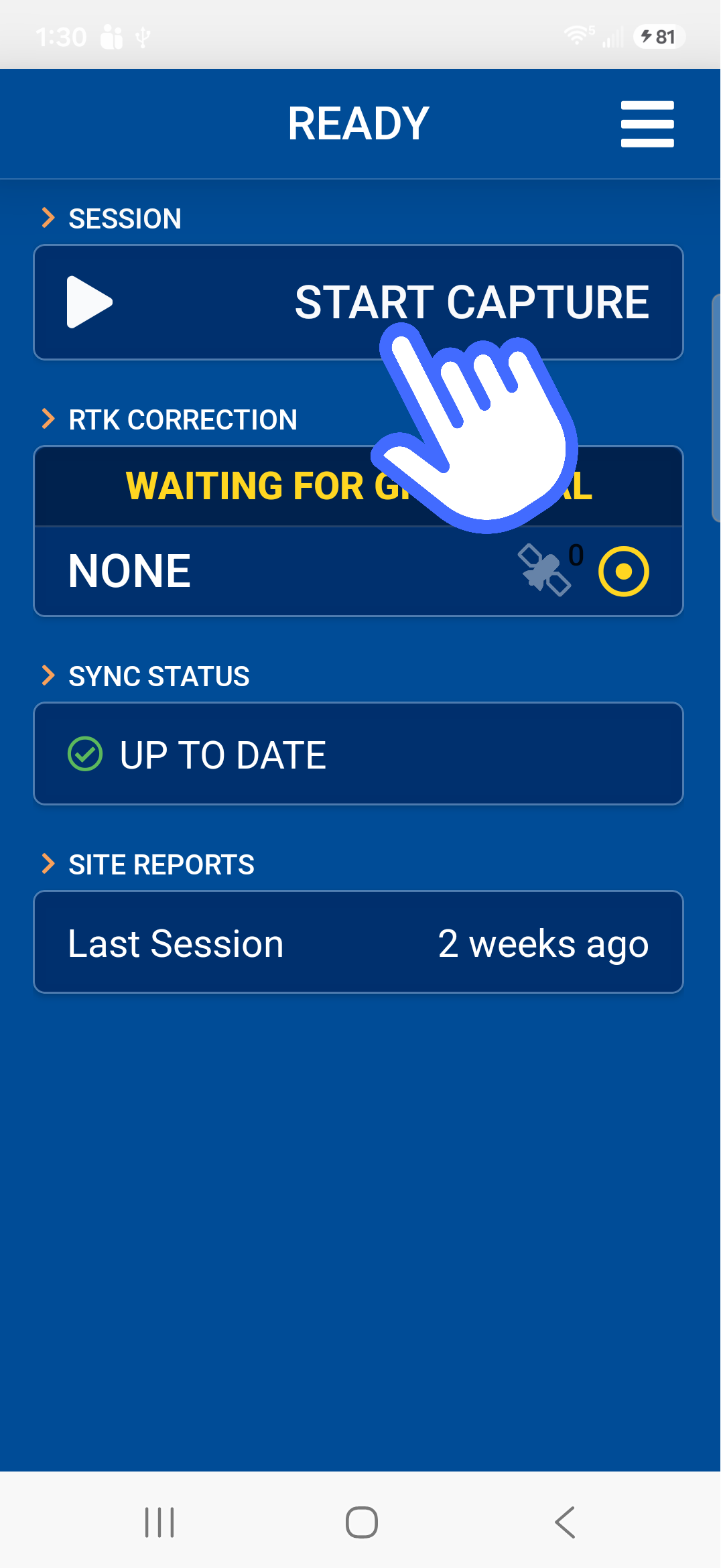
On the app, tap the START CAPTURE button on the home screen.
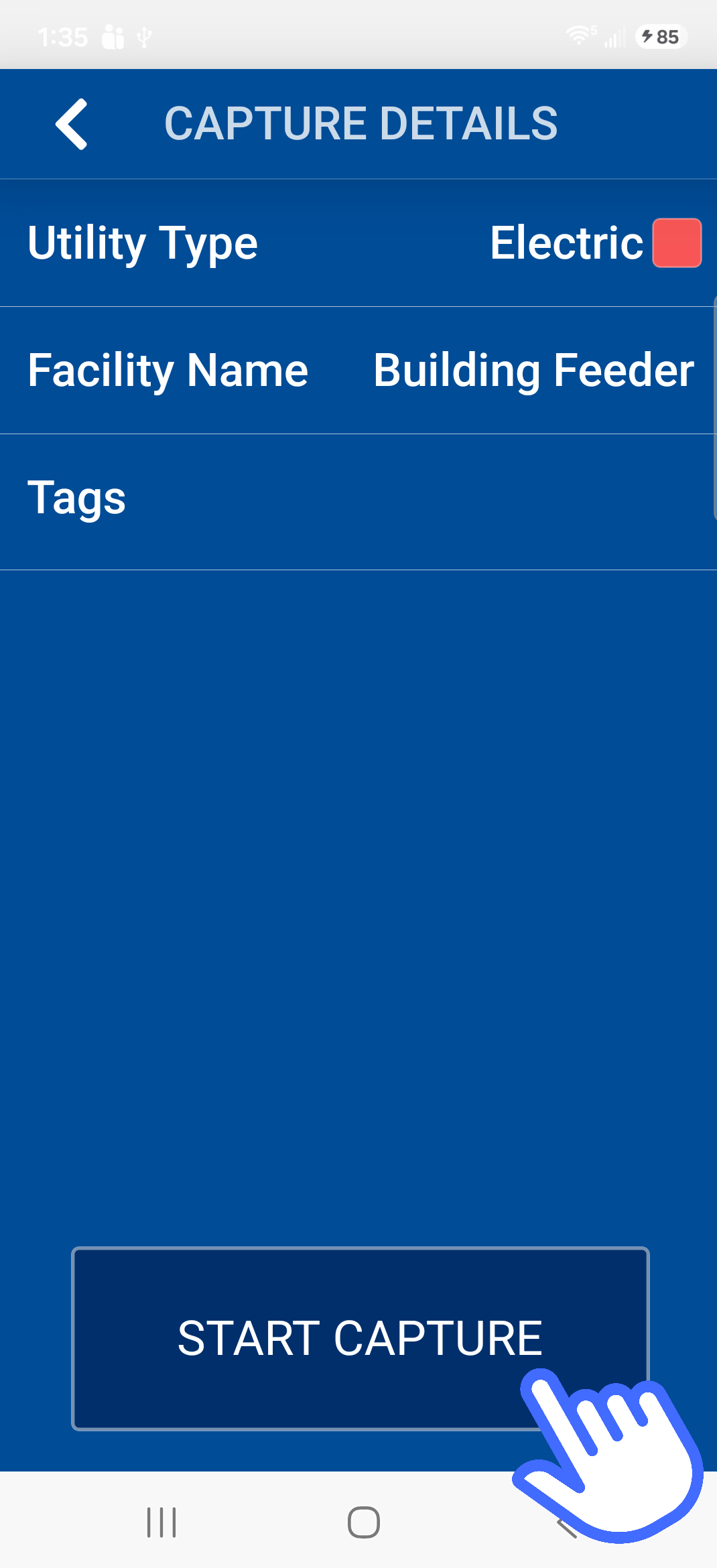
- Select the Utility type, enter a Facility name and any Tags you want to associate with the locate,
- Tap START CAPTURE to begin the capture session
NOTE: The locator can be ON or OFF when starting the locate session
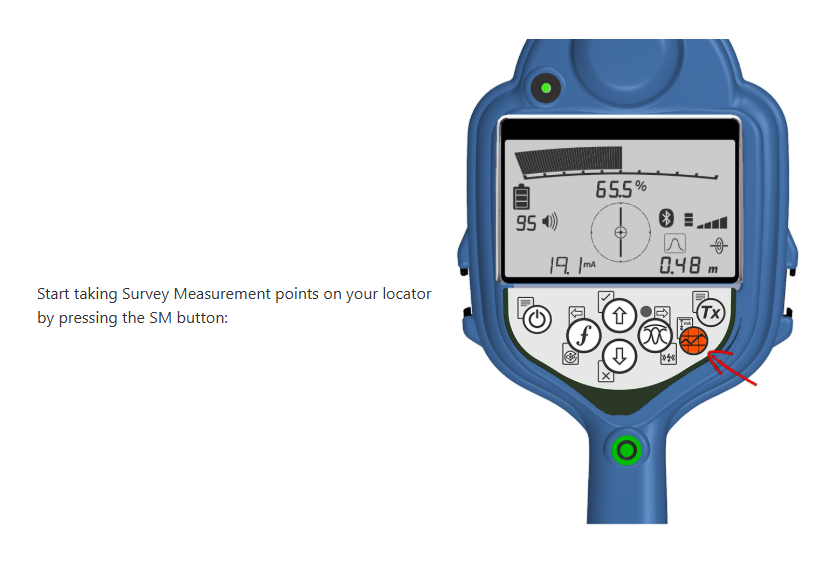
Conduct the utility locate survey as usual, making sure to capture your survey marking points by pressing the survey measurement key on the locator throughout the process:
When you finish your survey :
- Turn OFF the locator
- if using a RD8200G or MRXG locator, press END CAPTURE
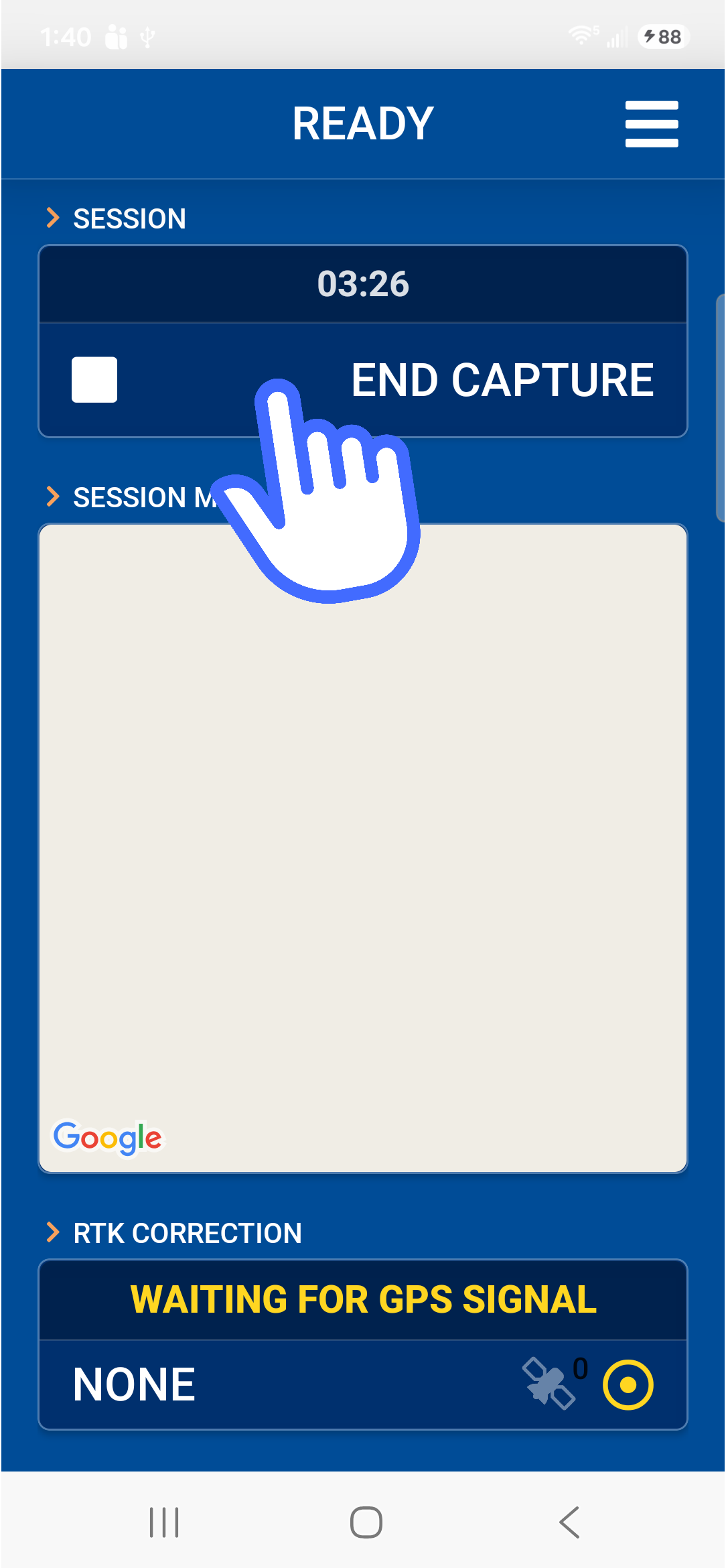
- confirm you want to end the current session by tapping YES
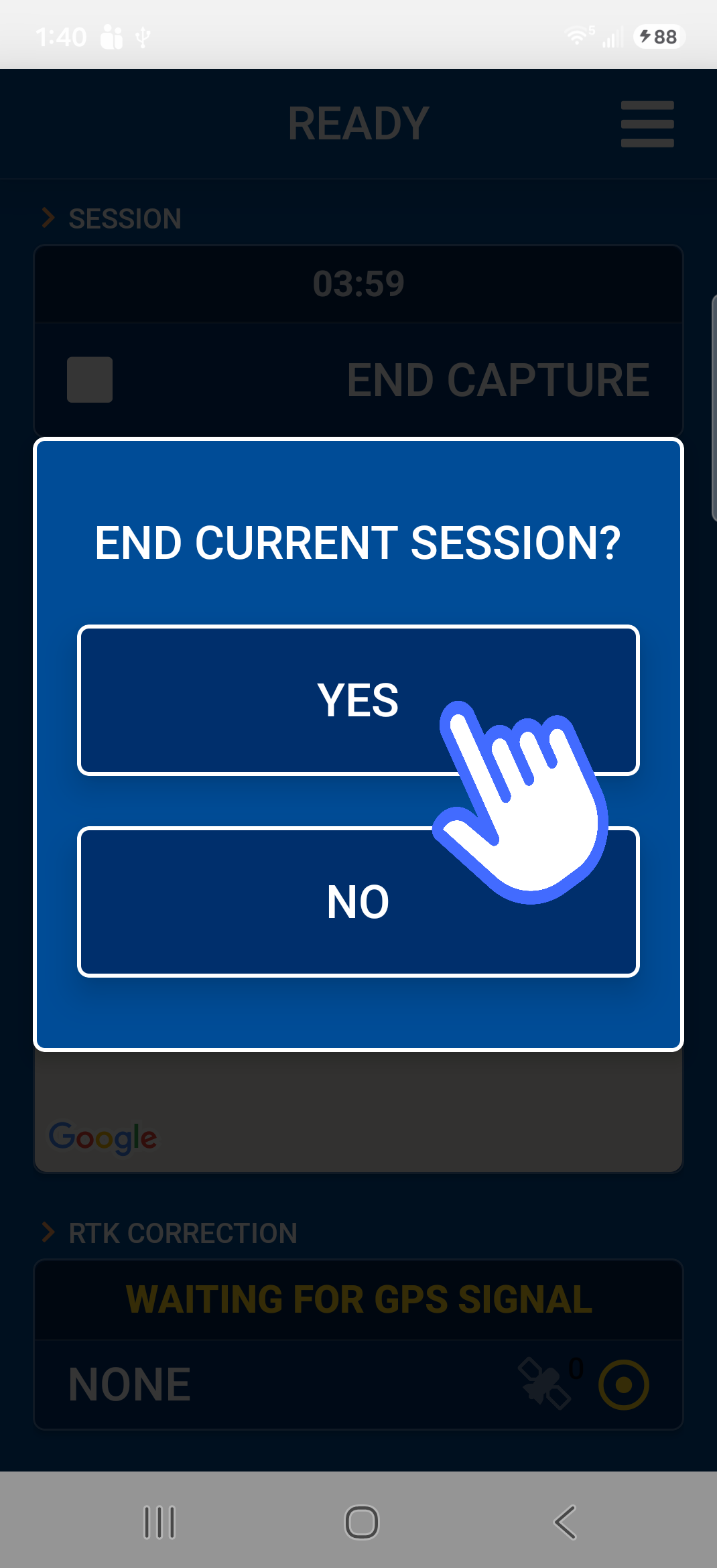
Allow the app to retrieve data from the locator and transfer it to the Locate Performance Management system.
- Tap on Last Session to verify your survey score. Note: There will be a brief delay for the survey data to process and update on the phone after uploading.
![IMG_0011[1].PNG](/hc/article_attachments/30292956754845)