To sign in to the LPM Locate Assurance web portal, have your user account credentials ready.
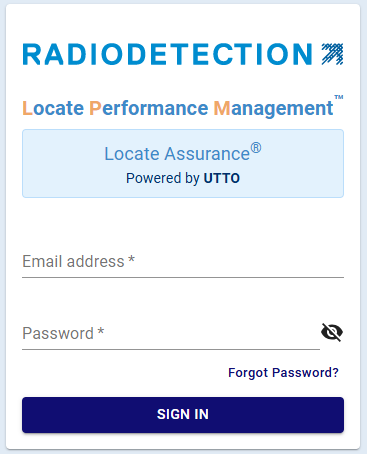
Your LPM account credentials include your username—which is typically your registered email address—and your password. After a system administrator creates your profile, you will receive an activation email that allows you to create your own password.
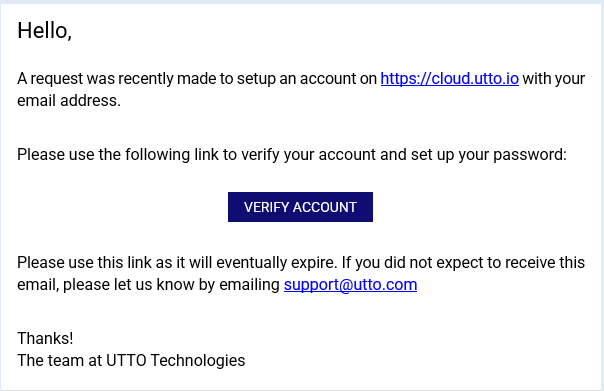
NOTE: If you have not received your activation email, check your spam or junk email folder to see if it has been filtered there.
Activate your account
To activate your account follow these steps:
Forgotten Password
If required you can reset your password by clicking the Forgot Password link.
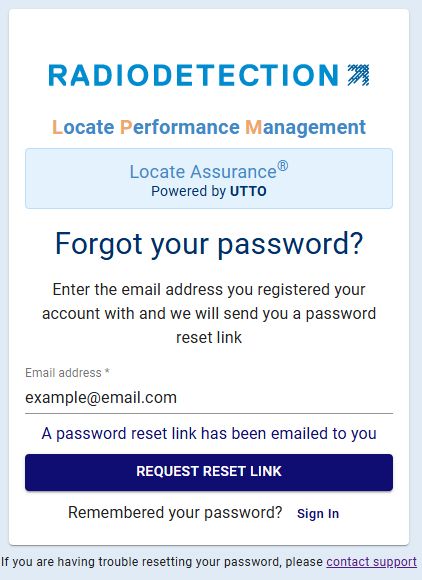
You will receive a password reset link at your registered email address if the system recognizes the email you provided. If you do not see the email in your inbox, check your spam or junk email folder to see if it has been filtered there.