A location profile tells ArcGIS Field Maps how to interpret coordinates received from your SG Locator and, where necessary, transform them into the coordinate system used by your map.
When using an RTK correction service, the locator's GNSS coordinates may use a different reference system from the map. Configuring the correct profile helps ensure that collected positions are placed correctly.
NOTE: An RTK fix alone does not confirm that the coordinate systems are correctly configured.
This article explains how to create a profile for a generic RTK correction service and map coordinate system. Menu names may vary slightly between Android, iOS and application versions.
Before you start
Obtain the following information from your correction service provider, receiver supplier and GIS administrator.
| Information |
What you need |
| Receiver output coordinate system |
The geographic coordinate system of the coordinates delivered to Field Maps, including its name and EPSG or Esri WKID code where available. |
| Reference-frame realisation and epoch |
Any specific realisation and coordinate epoch supplied for the correction service or receiver output. Provide these to your GIS administrator when confirming the transformation. |
| Map coordinate system |
The coordinate system of the web map you will use in Field Maps. Confirm this with the map author rather than assuming it matches the editable layer. |
| Collection area |
The geographical area where you will collect data. |
| Datum transformation |
The transformation approved for the receiver output, map and collection area, if one is required. |
NOTE: Esri recommends that the map author either configure the profile or provide field users with the GNSS coordinate system, map coordinate system and transformation to use.
Important: Connect your mobile device to the internet during setup so that you can specify the collection area when selecting a transformation. Field Maps skips this area-selection step when offline.
Crating a location profile
To create a profile follow the following steps:
1. Open the location profile settings
- Open ArcGIS Field Maps
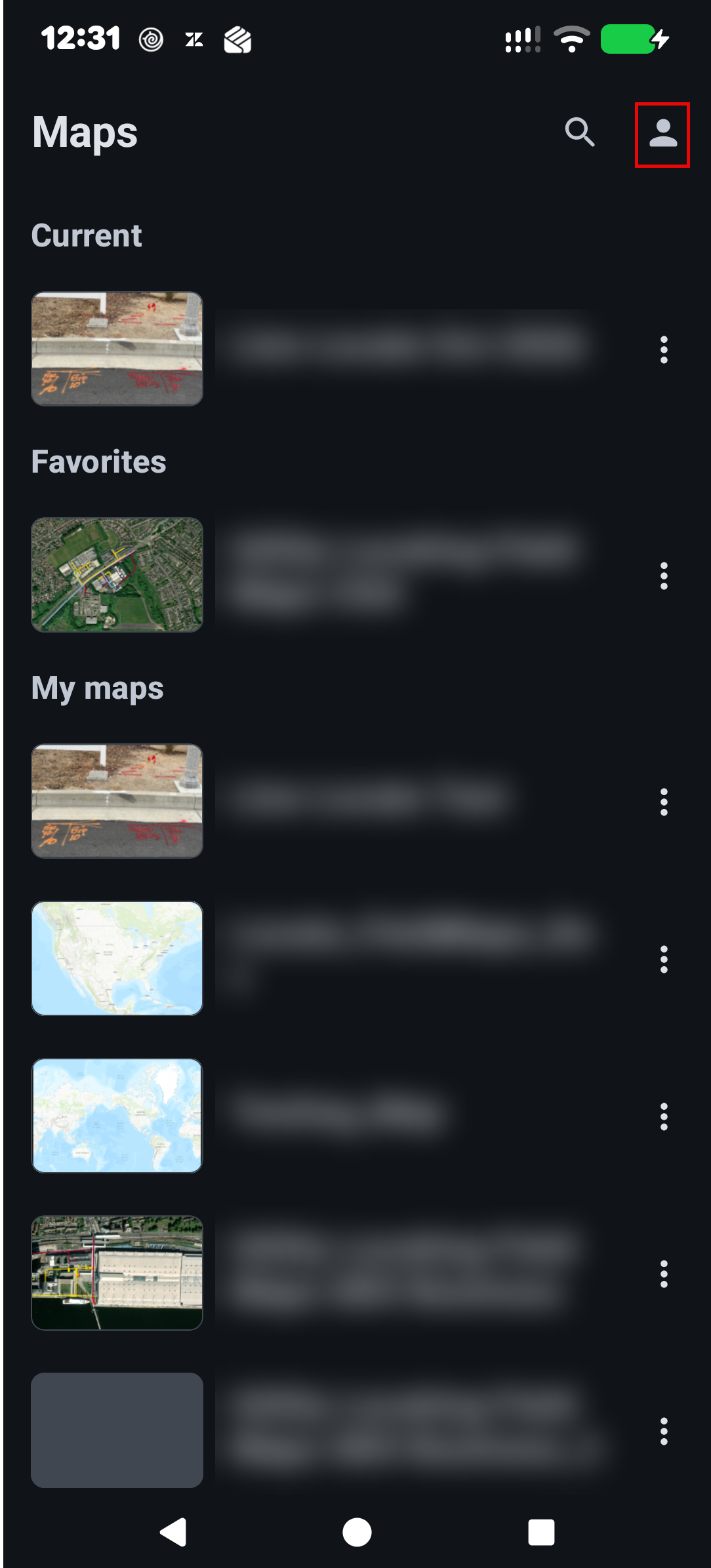
- Return to the Maps list
- Tap your profile icon to enter your settings
|
 |
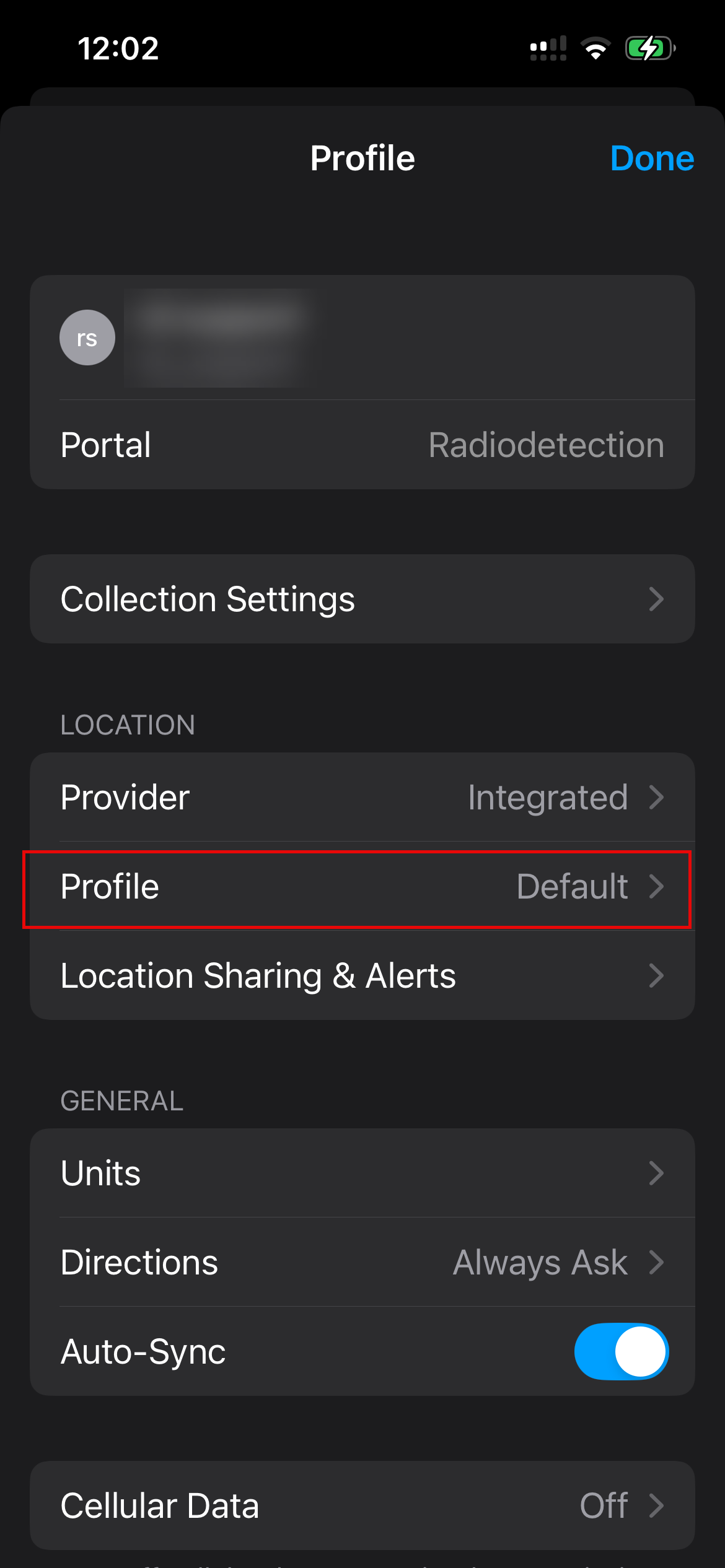
- Under Location, tap Profile
|
 |
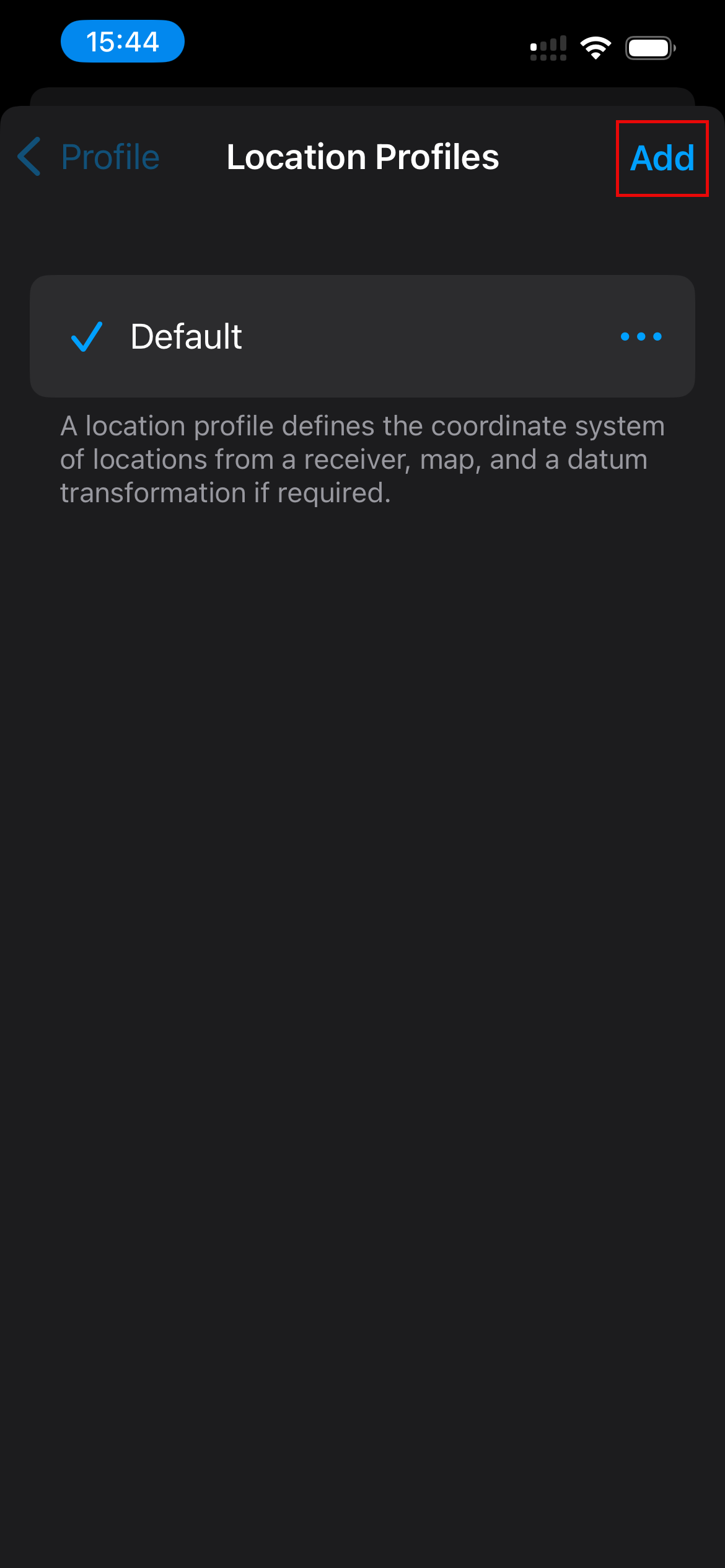
- Tap Add to create a location profile
|
 |
NOTE: A location profile configures coordinate handling. It does not replace the GNSS receiver’s RTK or NTRIP connection settings.
2. Select your RTK Provider GNSS coordinate system
|
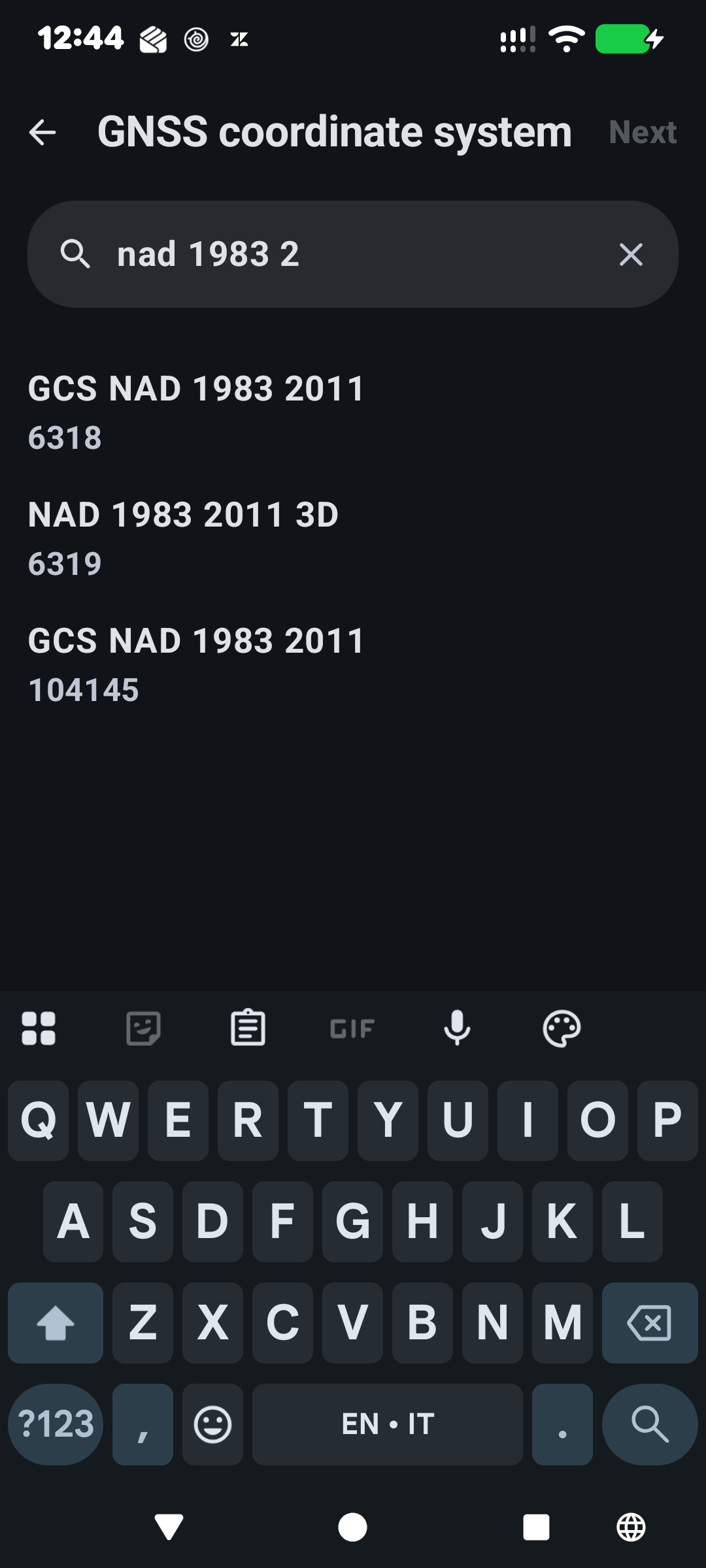
In the GNSS coordinate system selection:
- Search for the geographic coordinate system supplied by your correction service provider
- Select the matching entry, checking the identifier and reference-frame realisation where provided
NAD 1983 2011 in the example image
- Continue to the next step (map coordinate system selection)
|
 |
CAUTION: Do not select WGS 84 simply because the locator GNSS uses GPS or because the map uses a WGS 84 basemap. The setting must match the incoming coordinates. Field Maps assumes WGS 84 by default, which may not be appropriate for a corrected GNSS position.
If the provider supplies a coordinate epoch as well as a CRS name, retain that information and have your GIS administrator confirm how it is handled. The standard location-profile workflow does not document a separate coordinate-epoch entry field; including an epoch in the profile name does not apply an epoch-dependent transformation.
3. Select the map coordinate system
|
In the Map coordinate system selection:
- Search for the coordinate system used by your web map
- Select the matching entry
WGS 1984 Web Mercator Auxiliary Sphere in the example image
- Continue to the next step
|
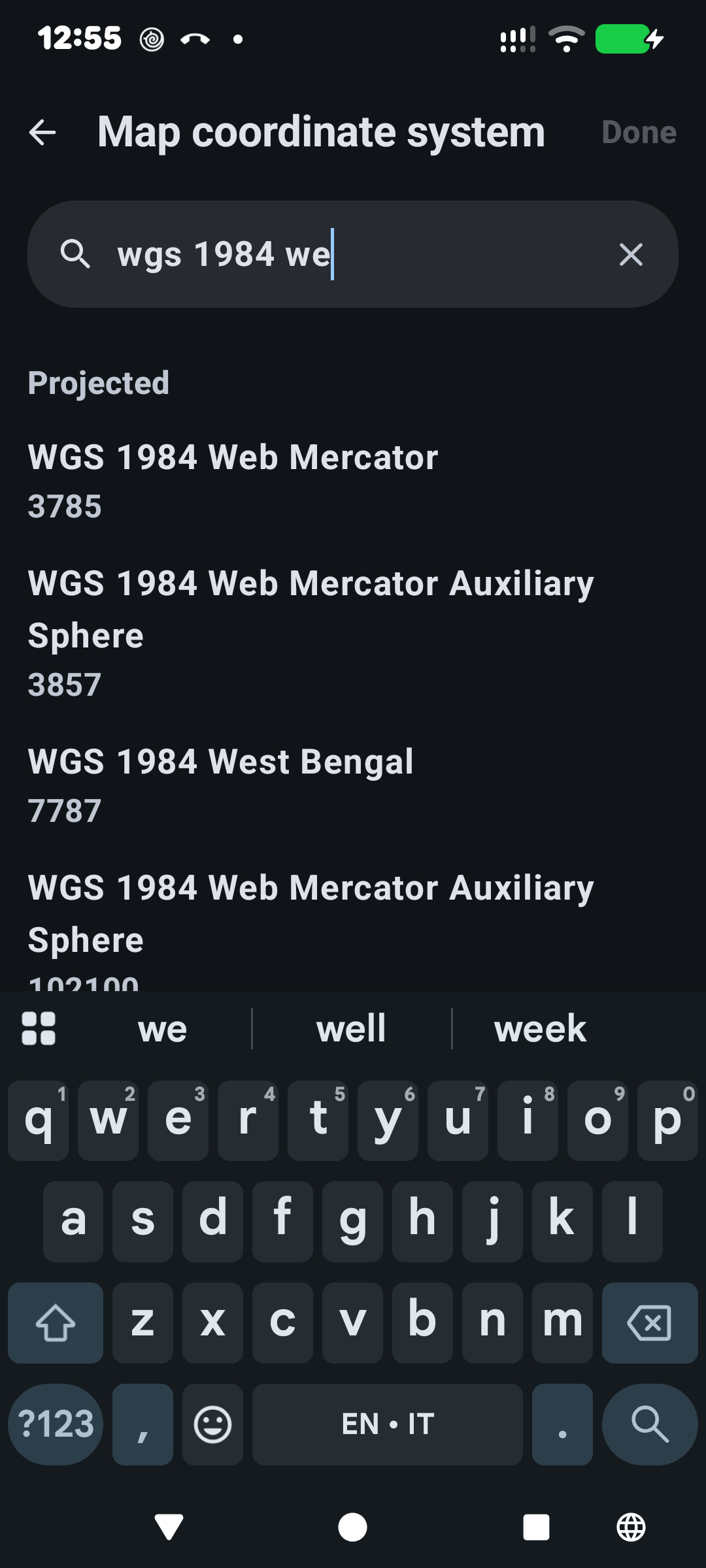 |
Use the map’s coordinate system for this setting, not the editable feature layer’s coordinate system unless they are the same. Field Maps handles the locator GNSS receiver-to-map and map-to-layer stages separately.
4. Select a datum transformation, if required
A datum transformation accounts for differences between geographic reference systems. It is separate from the projection used to display coordinates on a flat map.
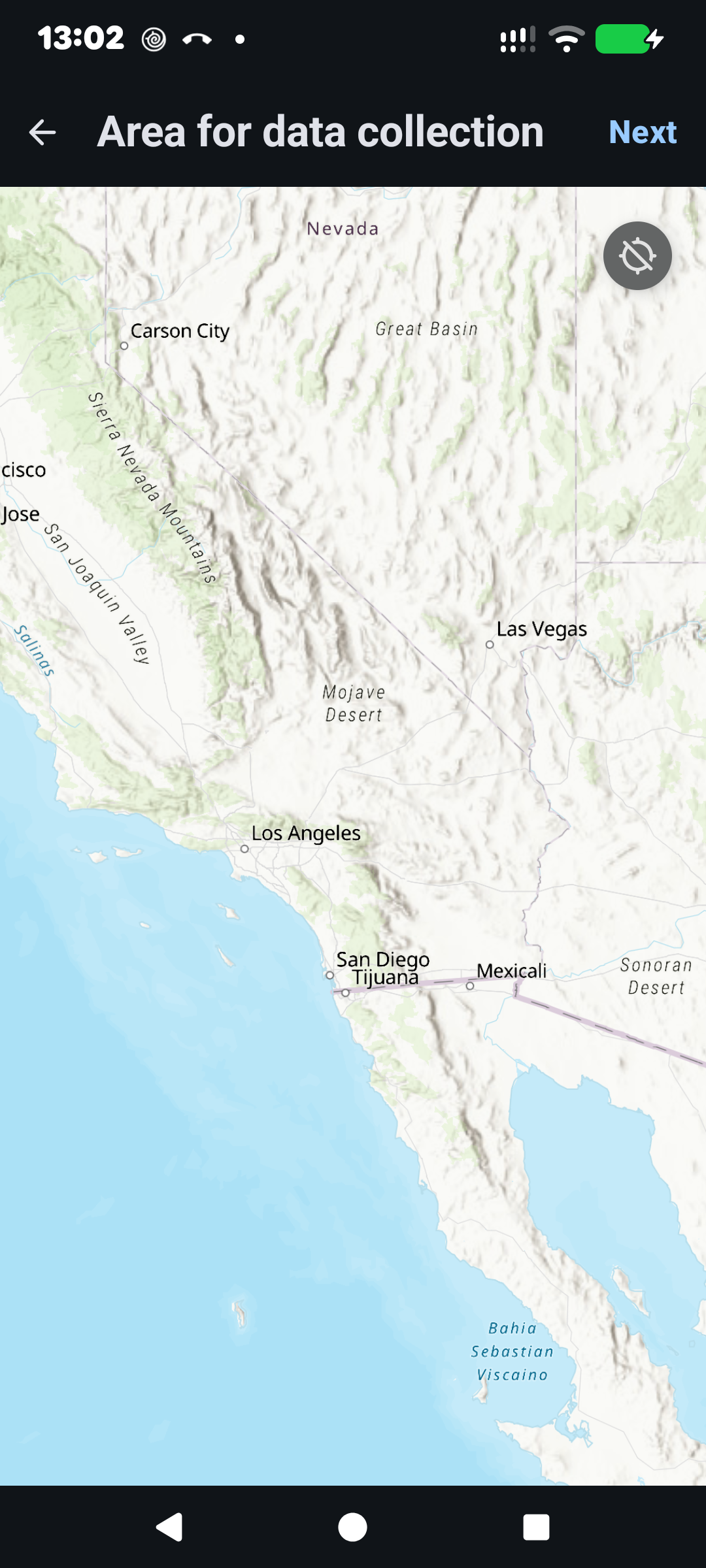
If Field Maps presents a transformation-selection step:
|
- Zoom the map to identify your collection area
-
Tap Next
|
 |
- Review the available transformations
- Select the transformation specified by your GIS administrator
~WGS_184_(ITRF08)_To_NAD_1983-2011 in the example image
- Tap Next on Android or Done on iOS
|
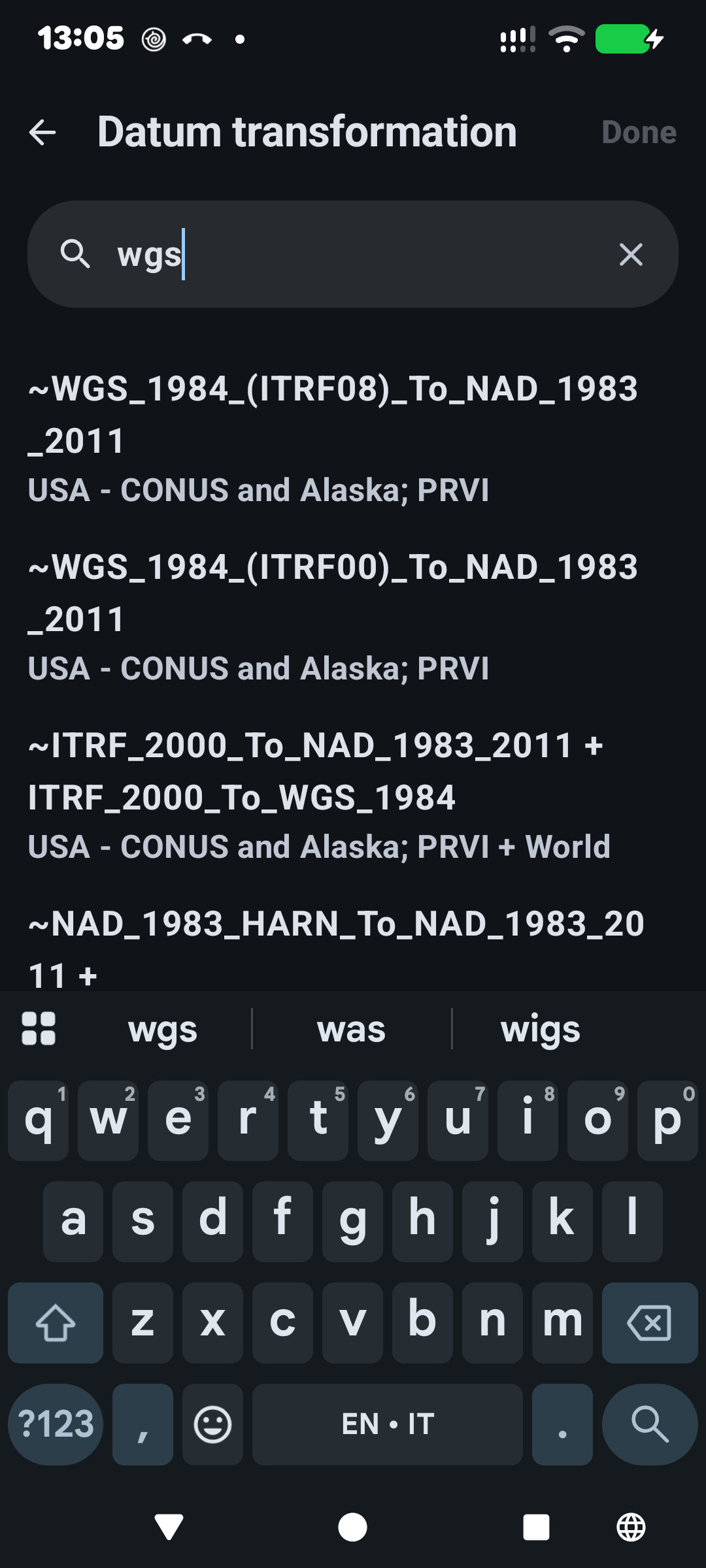 |
Field Maps uses the GNSS coordinate system, map coordinate system and collection area to identify and rank applicable transformations. The most relevant option appears first, but the transformation should still be checked against your project’s accuracy requirements and area of use.
Some transformations require additional grid files. If the approved transformation requires these files, arrange for them to be installed on the device before collecting data.
If “No Datum Transformation” appears
A message stating that a transformation is unavailable or not required does not, by itself, confirm that the configuration is suitable for your work.
- If both coordinate systems use the same geographic datum or reference frame, a datum transformation may not be required.
- If they use different reference frames, check that Field Maps provides a suitable transformation before proceeding.
Esri requires transformation information when corrected GNSS receiver coordinates use a different geographic coordinate system from the map. It also allows the profile workflow to continue without a transformation when one is not required.
Before accepting the message:
- Check both selected coordinate systems and their identifiers.
- Confirm the GNSS receiver’s actual output reference frame.
- If the workflow provides a collection-area step, repeat setup online and select the correct area.
- Ask your GIS administrator to confirm whether a transformation is required and supported.
WARNING: Do not change the GNSS coordinate system to an incorrect one simply to remove the message. The profile must continue to describe the receiver output correctly.
5. Name, save and select the profile
-
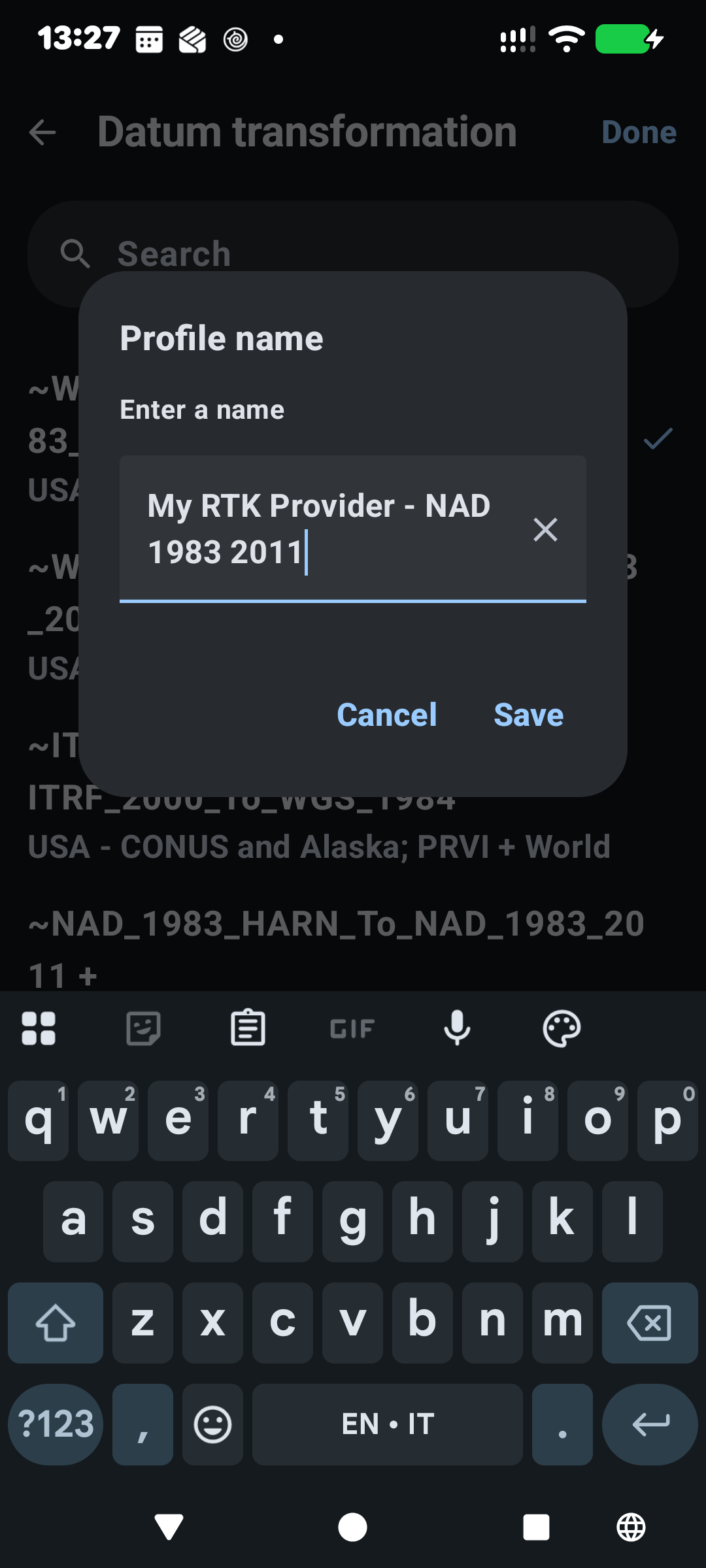
Enter a descriptive name.
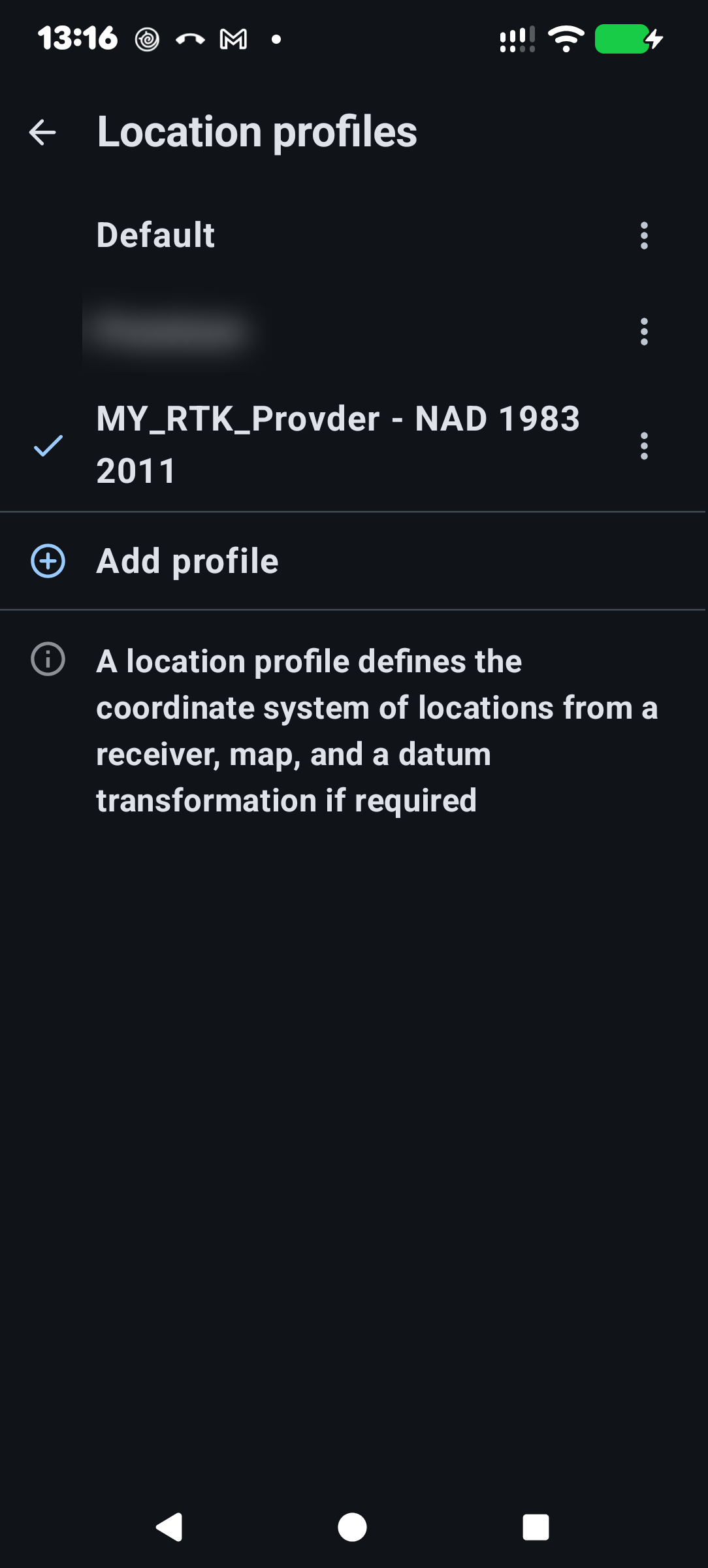
My RTK Provider - NAD 1983 2011 in the example image
- Tap Add on Android or Save on iOS.
|
 |
- Select the new profile so that it becomes the active location profile.
|
 |
The name is a label only; the selected coordinate systems and transformation determine the profile’s behaviour.
6. Verify the configuration before field use
Before starting production work:
- Confirm that the intended SG locator and location profile are selected.
- Check that the receiver is receiving corrections and has reached the positioning status required by your project.
- Collect a test position on a suitable known control point and compare it with the expected coordinates in a consistent reference system.
- Confirm that the editable layer receives the coordinates as expected, particularly if its coordinate system differs from the map.
These checks validate different parts of the workflow: receiver positioning, receiver-to-map transformation and map-to-layer handling. Esri describes these as distinct stages in high-accuracy collection.
Do not use visual agreement with aerial imagery as the only acceptance test. For work requiring a specified positional accuracy, use an appropriate control point and an agreed tolerance.
Troubleshooting
| Symptom |
What to check |
| The required GNSS coordinate system cannot be found |
Confirm its exact name, identifier and realisation with the provider. Do not substitute a similarly named CRS without approval. |
| No datum transformation is offered |
Verify both coordinate systems and confirm whether a transformation is required. Where available, specify the collection area while online. |
| The required transformation is unavailable |
Check whether it is supported on the device and whether additional grid files are needed. |
| Positions show a consistent offset despite an RTK fix |
Recheck the receiver output reference frame, selected profile and datum transformation before attributing the offset to RTK performance. |
| Positions appear correct in the map but not in exported data |
Check the editable layer’s coordinate system and the map-to-layer transformation with the map author. |
These checks follow Esri’s distinction between incoming GNSS coordinates, the map coordinate system and the stored feature-layer coordinates.
Height data
This article covers horizontal coordinate handling. Field Maps location profiles support horizontal datum transformations, not vertical datum transformations. If your workflow requires orthometric heights, a geoid model or a particular vertical datum, confirm the height-processing workflow separately with your receiver supplier and GIS administrator.