The site report screen allows a site manager and a team supervisor to view data of individual sessions.
Site reports can be viewed for corresponding alerts from the Alerts tab
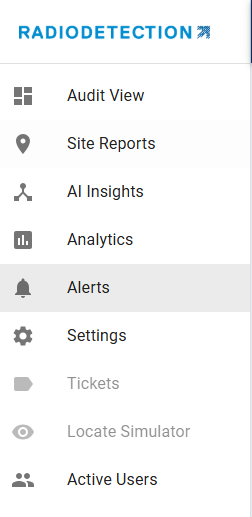
or to view all site reports select the Site Reports tab
 |
Site Reports tab |
View by Date Range and Team
Select the 'Date Range' and the 'Team' you would like to focus on.
This will then give you access to all the site reports for that date range and the team that you have selected.
If you click on each line you can see a brief summary of each site report.
To view the site report fully, click on the button View Site Report - 
Once in the Site Report you will notice a lot of information. Along the top of the screen is the basic information about the report, the user name, date, address etc.
Followed by time and distance information.
Radar Chart
Next is the Radar Chart which consists of 10 different metrics and gives an overall risk assessment of the session.
The Radar Chart is a powerful way to provide a visual snapshot of locate performance across multiple quality dimensions. Each axis of the chart represents a key performance factor (e.g., Centering, Compass, Depth, Gain, Lift, Null, Peak, Swing, Vertical). The stronger the locate performance, the more complete the Radar Chart is filled in with blue. Here we see Null mode was not used.
Benefits of the Radar Chart:
At-a-glance assessment – Quickly see whether the locate session was balanced across all performance factors.
Highlight strengths and weaknesses – Areas where the chart extends fully indicate strong performance; shorter areas flag potential gaps that may require attention.
Supports field training and coaching – Easy to show technicians where performance is consistent and where improvements are needed.
Saves time in review – Instead of reading through detailed scores, supervisors and techs can instantly interpret the session profile.
Breadcrumbs
In the middle of the screen is the map. Here you can see each GPS locate point on the map. Each of the red dots represents the 'breadcrumbs' of the locate.
Performance Charts
The Performance Charts, located below the Radar Chart, display session-wide profiles for Depth, Current, Gain, and Frequency. All the charts are interactive.
Each data point on these charts corresponds to a GPS-captured point and is fully linked to the Map View. For example, if you identify a dip or anomaly on the Current Profile, clicking that point will highlight its exact location on the map, making it easy to investigate issues like signal loss, holidays, contact areas or interference from other facilities.
Overall Performance
As each individual locate point is clicked, either on the graph or on the map, the data for that specific locate point is displayed.
Additionally the locate point is highlighted in blue on the map.
Performance Details
Just below the Performance Charts is the Performance Details section. This area offers a snapshot of individual locate scores for every locate mark/GPS capture point, rather than a single session-wide score.
The list is arranged in the exact order of capture, making it especially valuable for deep-dive analysis of a locate session, helping you identify where performance was consistent and where it may have varied or if a field tech ensures the first few locate points are of high quality to ensure they are on the correct target.
Site Report Export

On the Site Report screen you can choose to export the data in to various formats.
- CSV
- GeoJSON
- KML
- PDF
- Shapefile