Before pairing with MyRD, make sure you have completed the locator setup described in Set up the locator.
MyRD first run
|
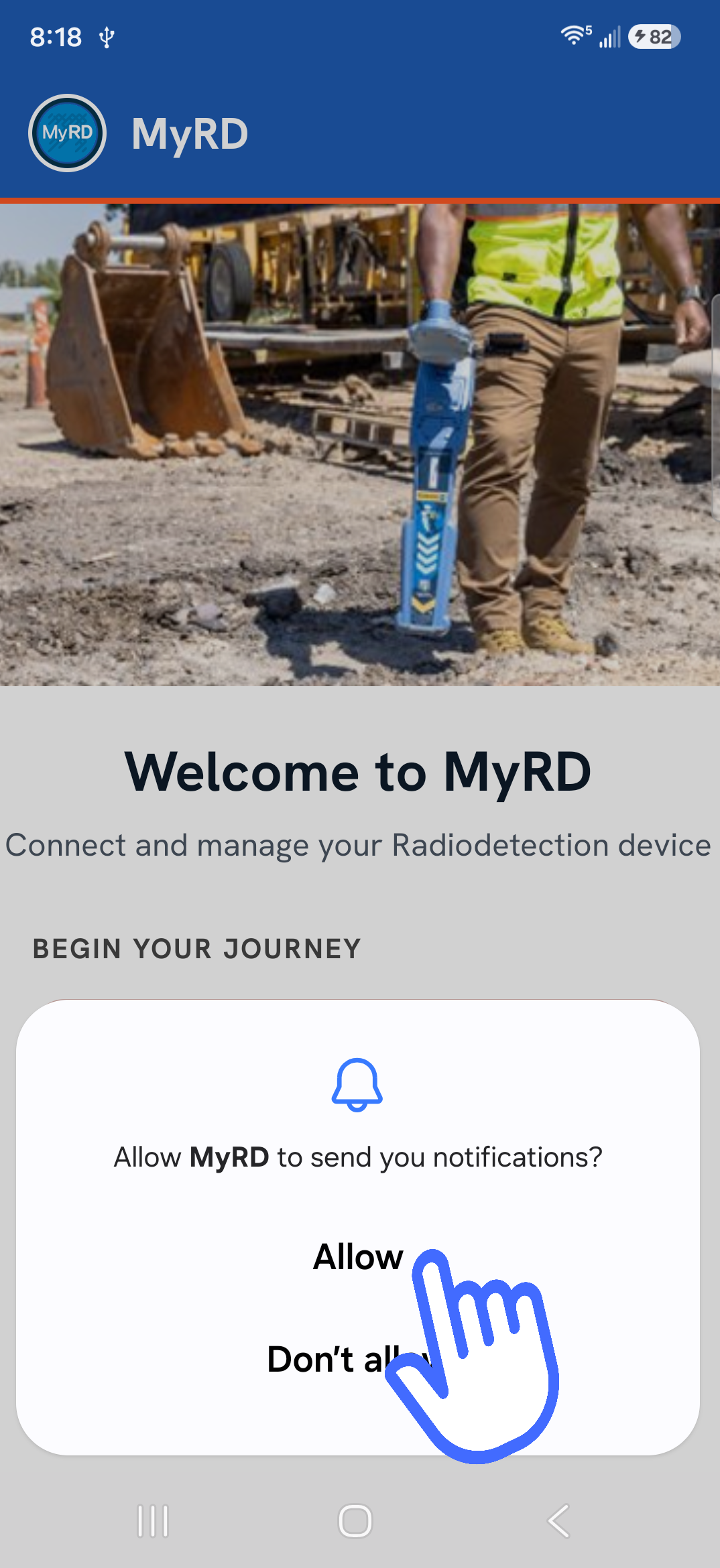
When you first launch the app, allow notifications is displayed.
This enables MyRD notifications to appear on your phone.
Select Allow
|
|
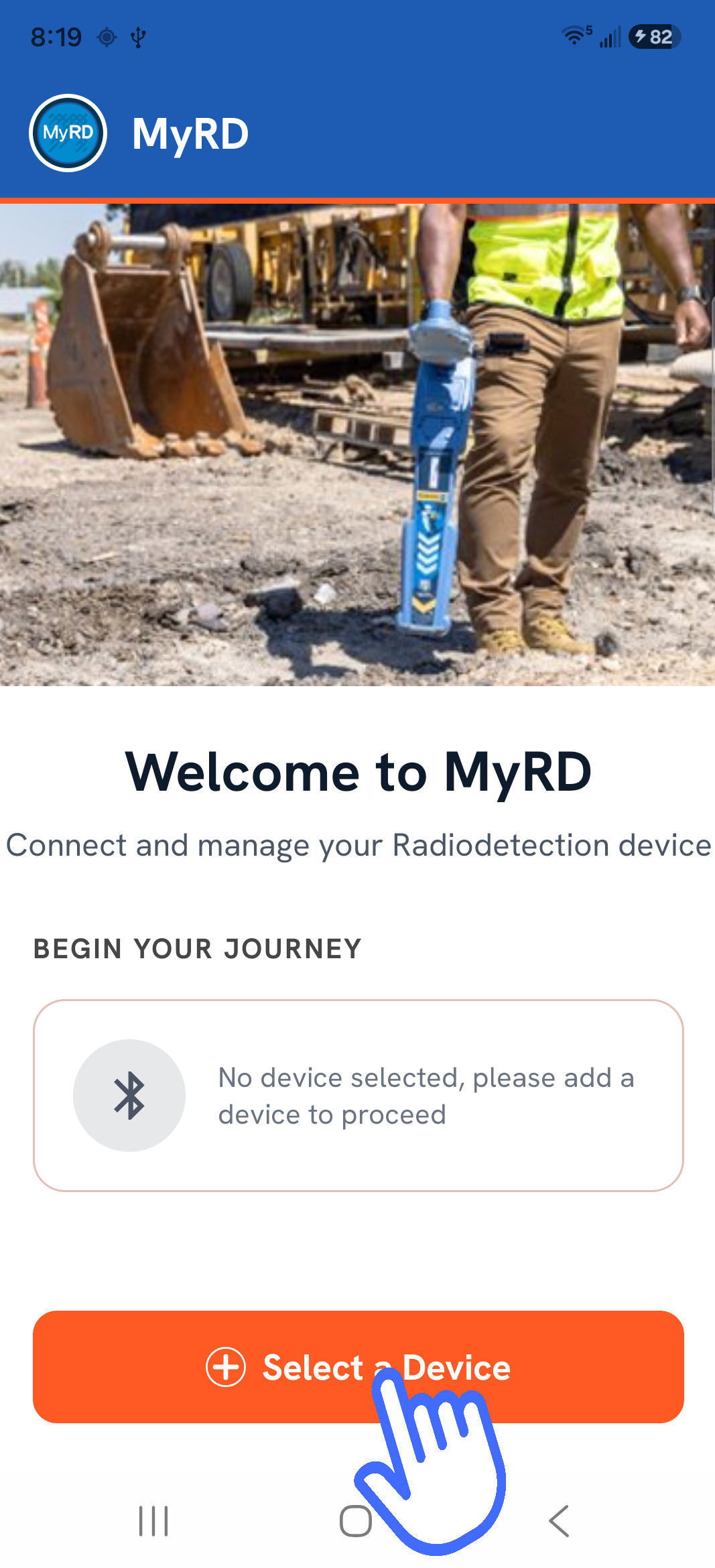
| When you tap Select a Device, the app prompts you to grant the required permissions for the app to work properly. |
|
|
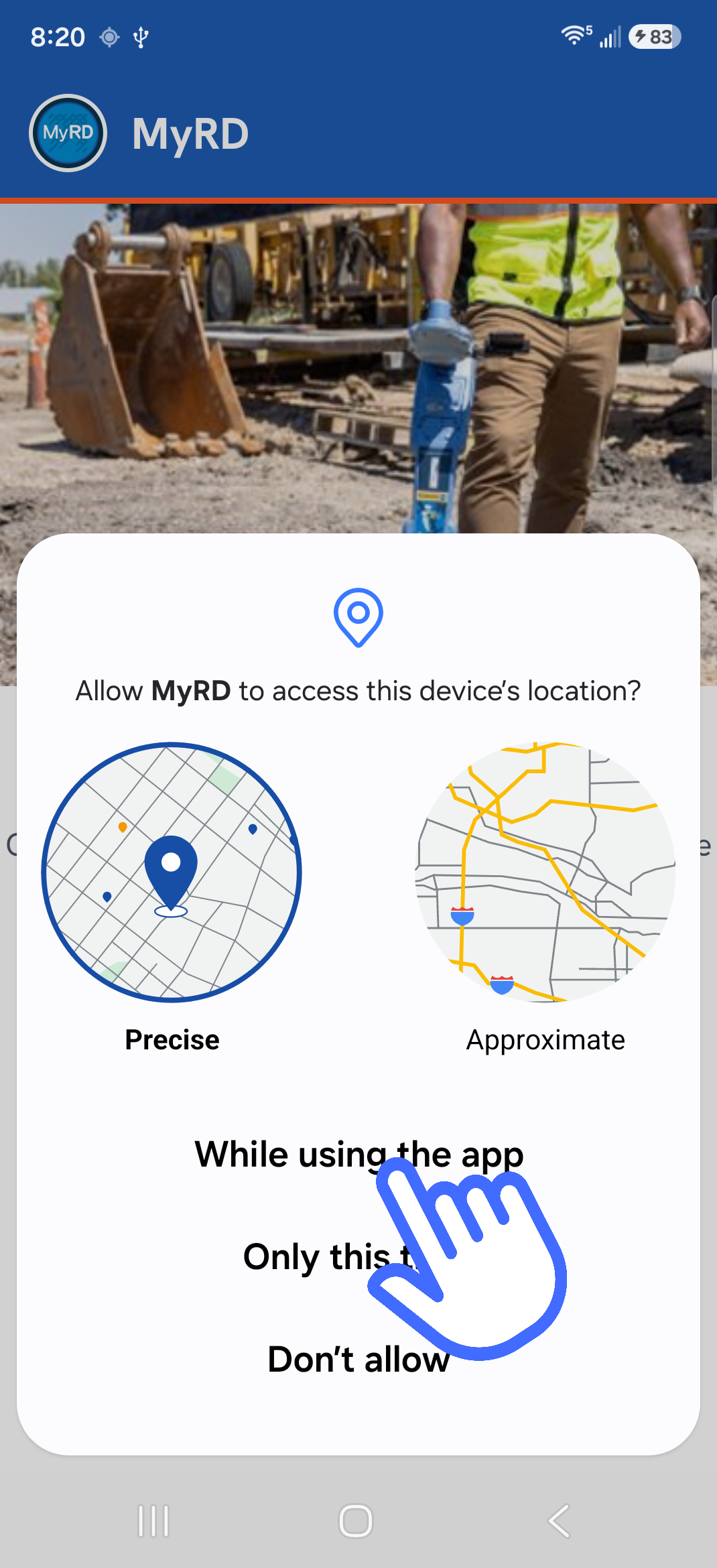
Location
This permission is required to enable background operation and support the NTRIP client.
Select While using the app
|
 |
|
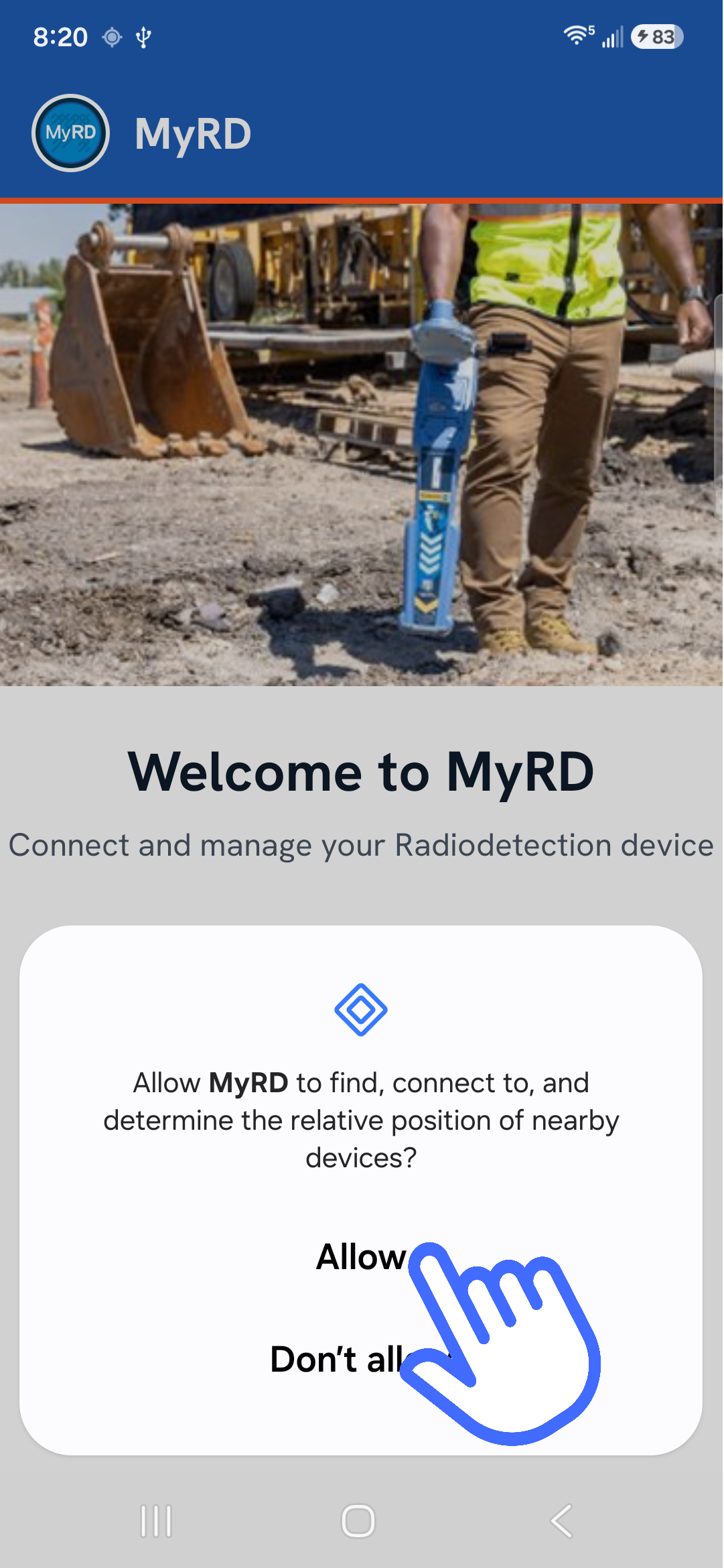
Bluetooth
This setting allows MyRD to use Bluetooth connectivity to interact with your locator.
Select Allow
|
 |
NOTE: All requested permissions must be allowed for MyRD to function correctly. |
Pairing your SG locator
|
To connect a compatible locator, you must first pair with it. Ensure that on the locator the PHONE setting is set for ANDRD and BLE
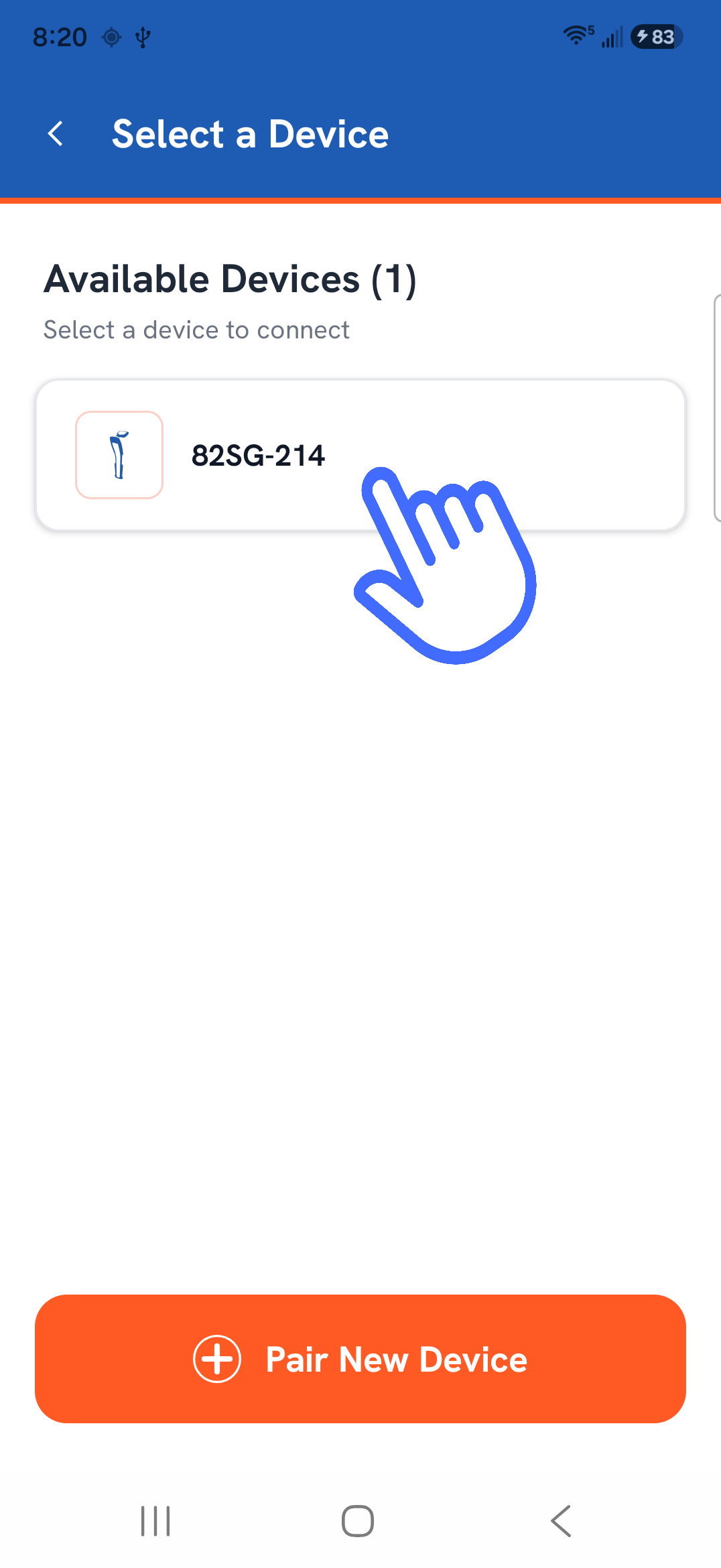
The Available Devices screen shows all nearby compatible locators.
If you do not see your locator, ensure the battery is fully charged and that the locator is switched ON.
Select the device to pair.
|
 |
|
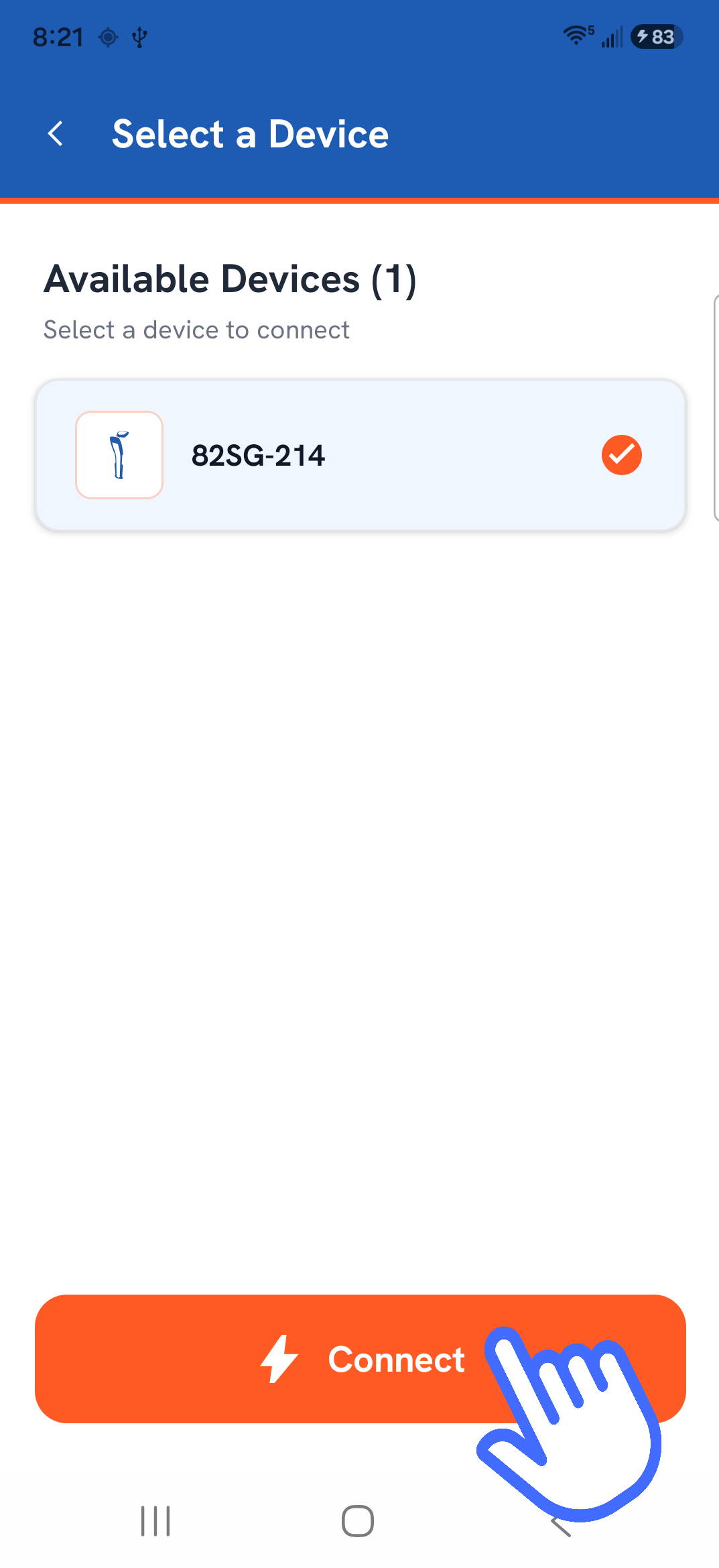
After selecting your locator from the list, tap Connect to complete pairing.
|
|
|
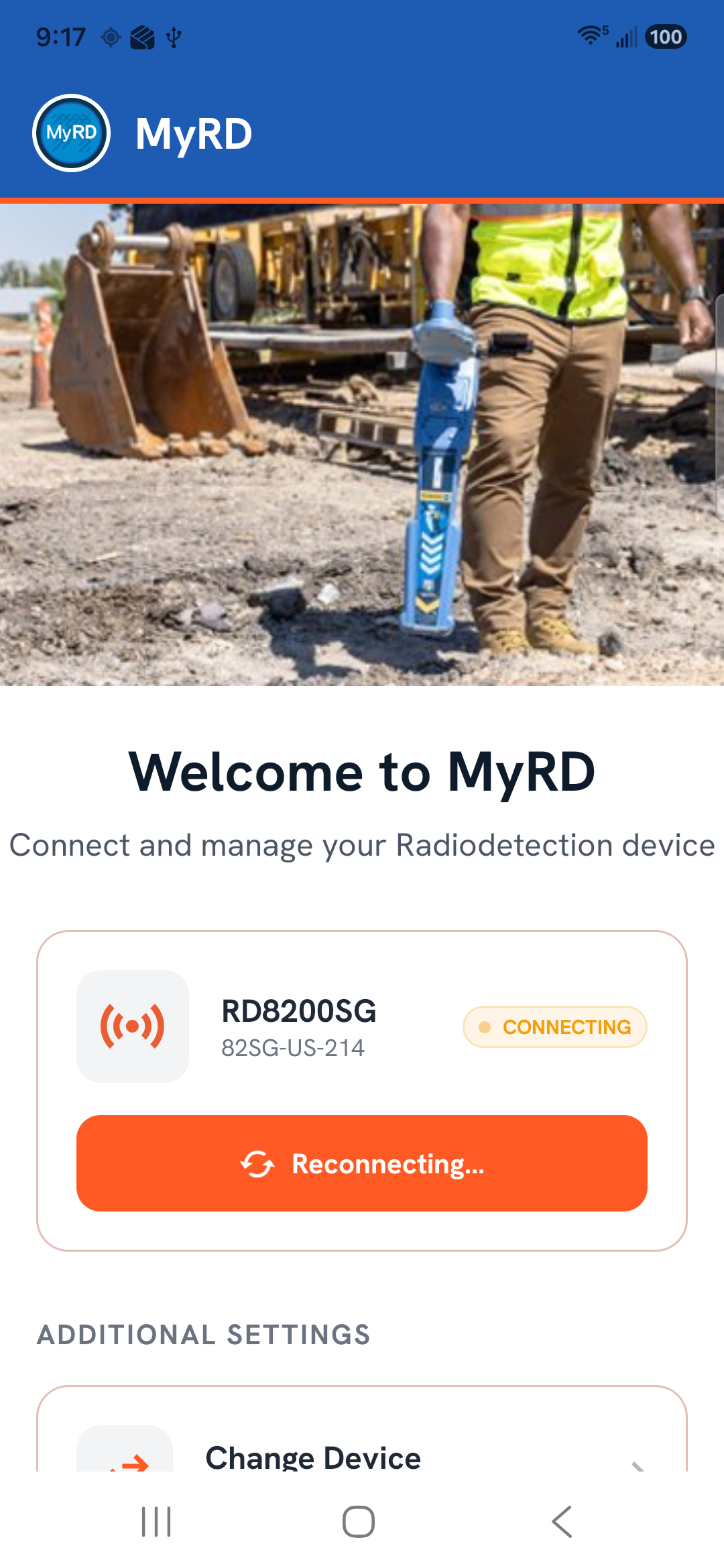
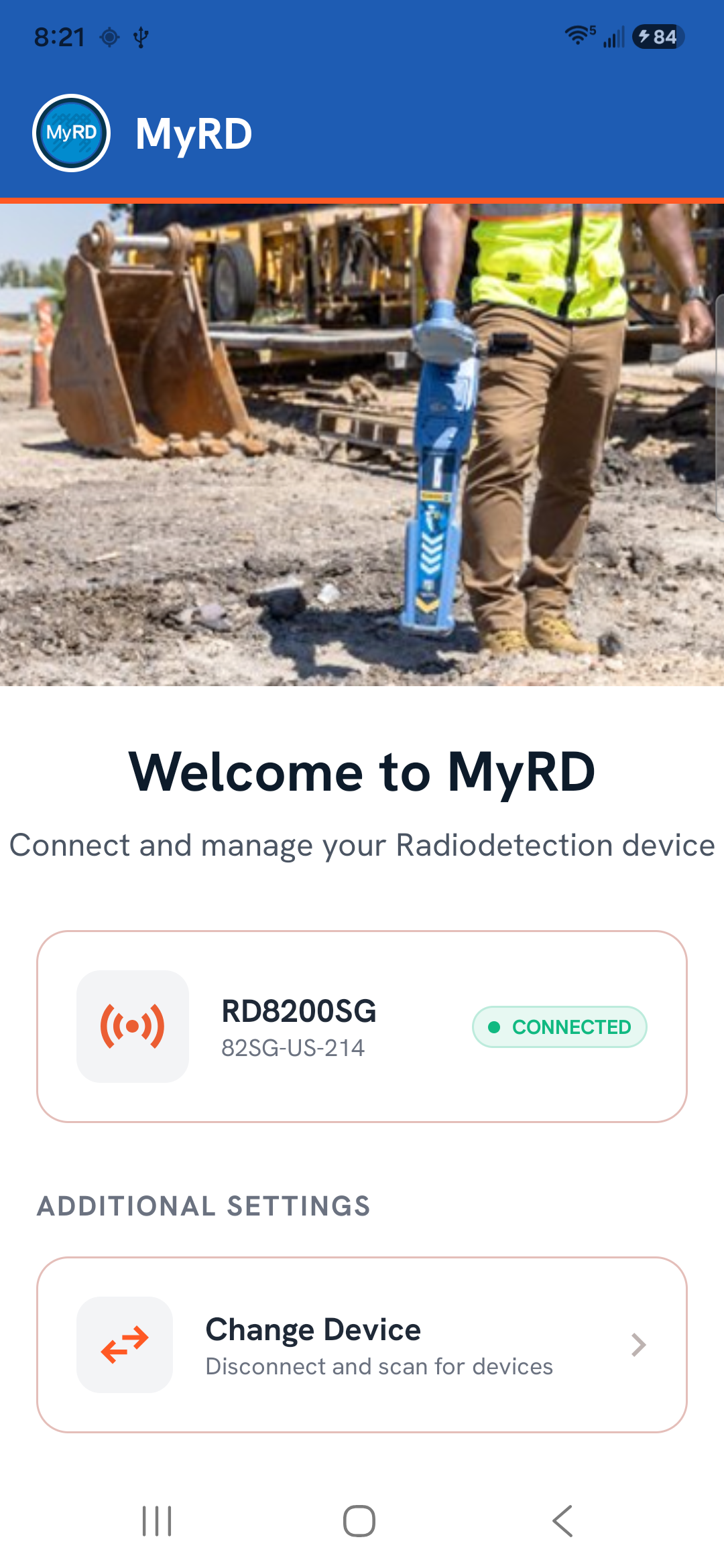
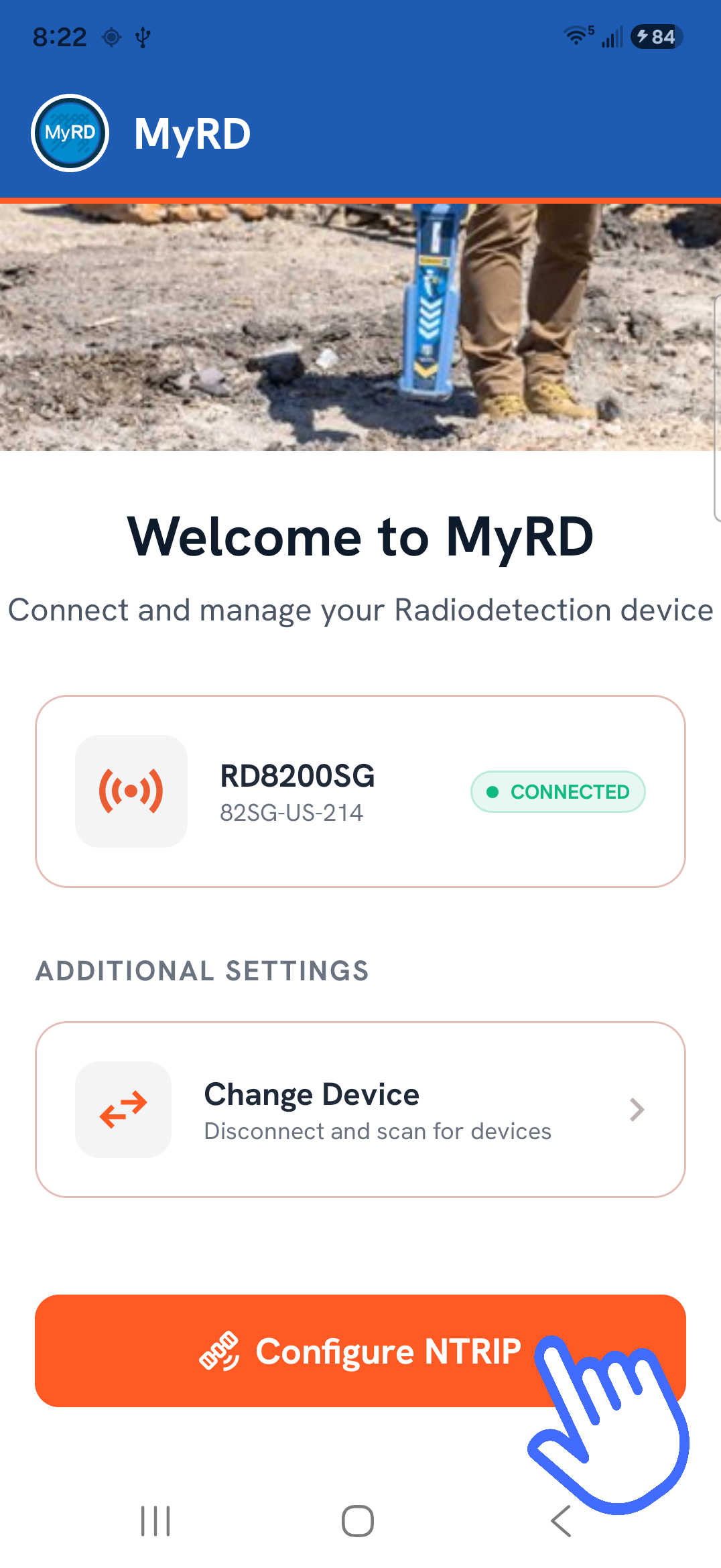
After selecting connect you will return to the main screen, and the app will display connection status.
Once pairing is complete, the locator will appear and show Connected status.
|
|
| From here, you can configure a Correction Service or change the paired locator. |
 |
Correction service
|
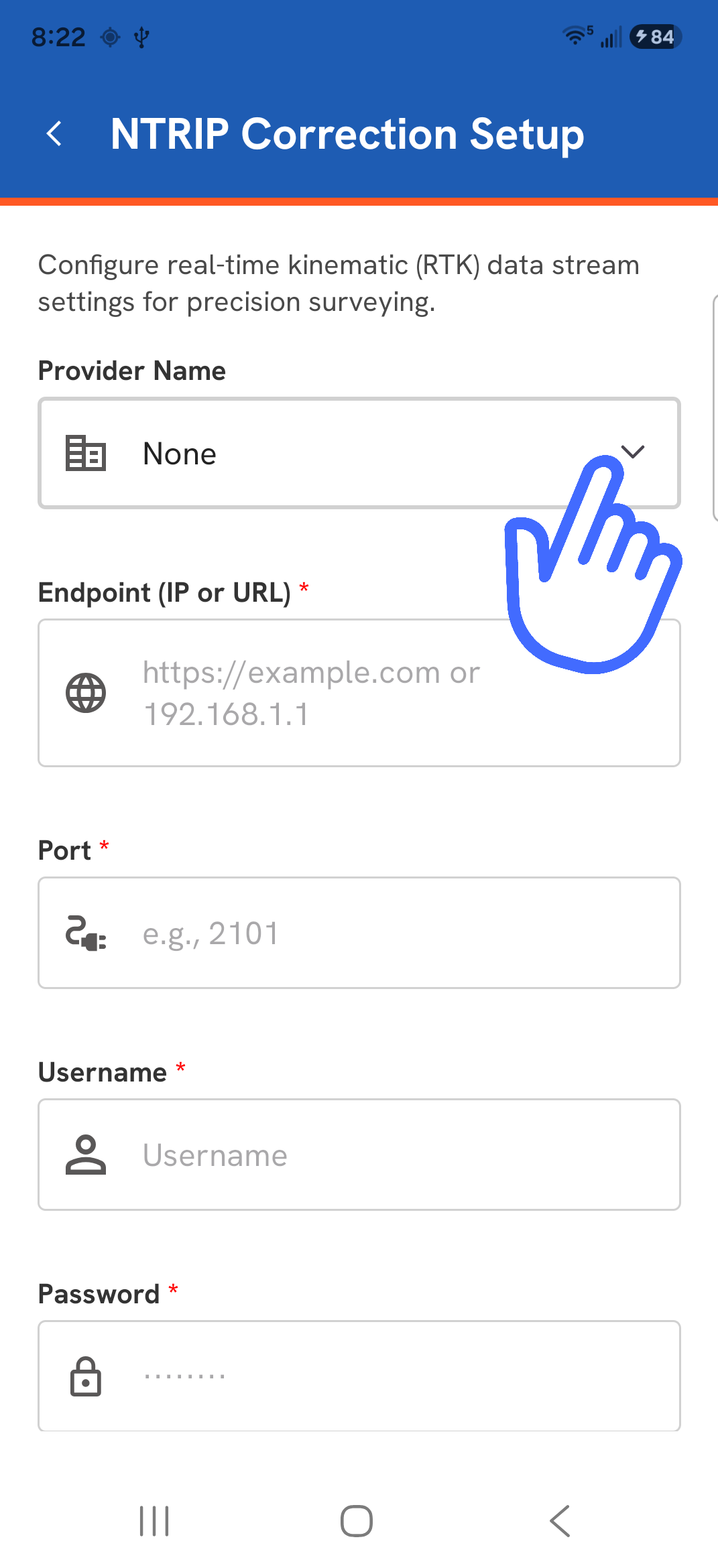
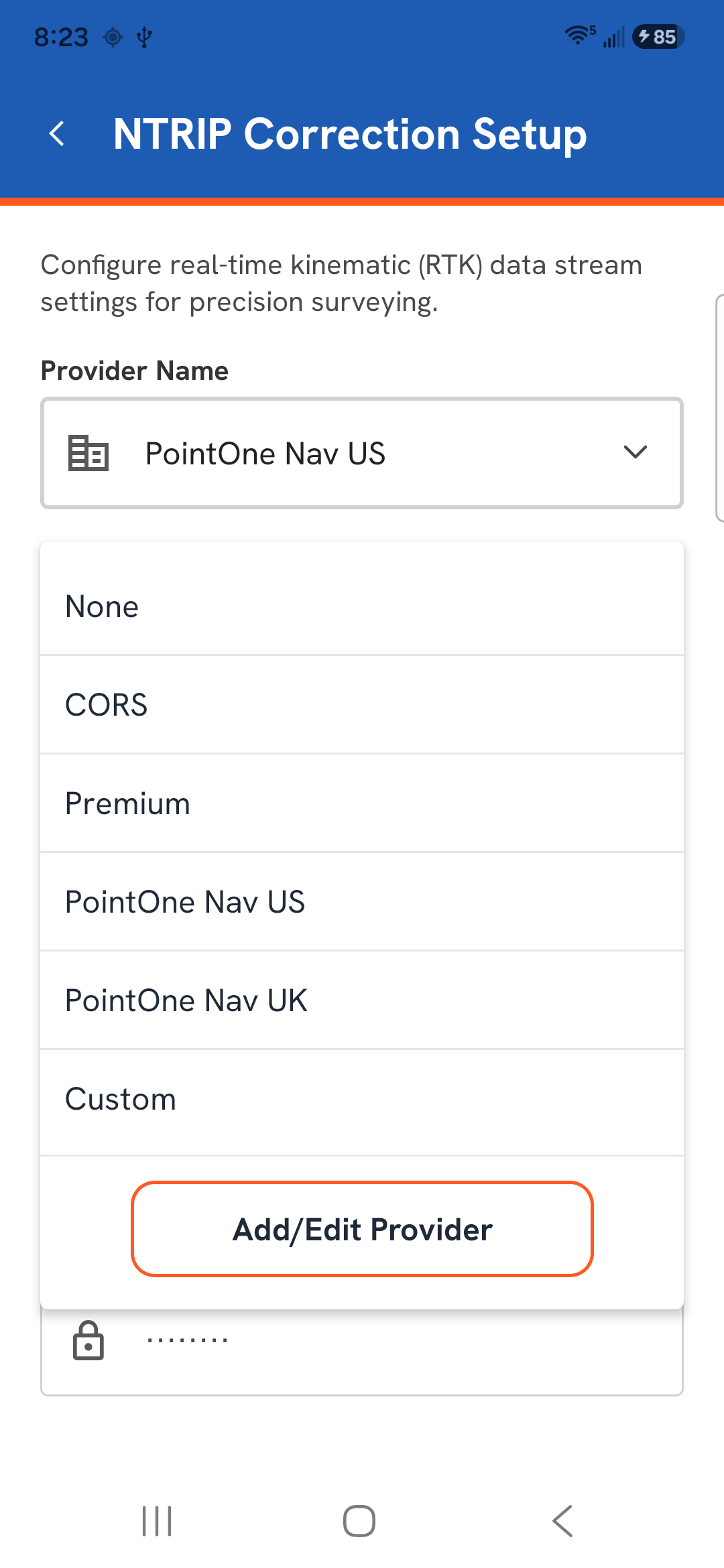
Select a Provider
Choose from pre-configured providers or select Custom.
|
|
|
Pre-configured service
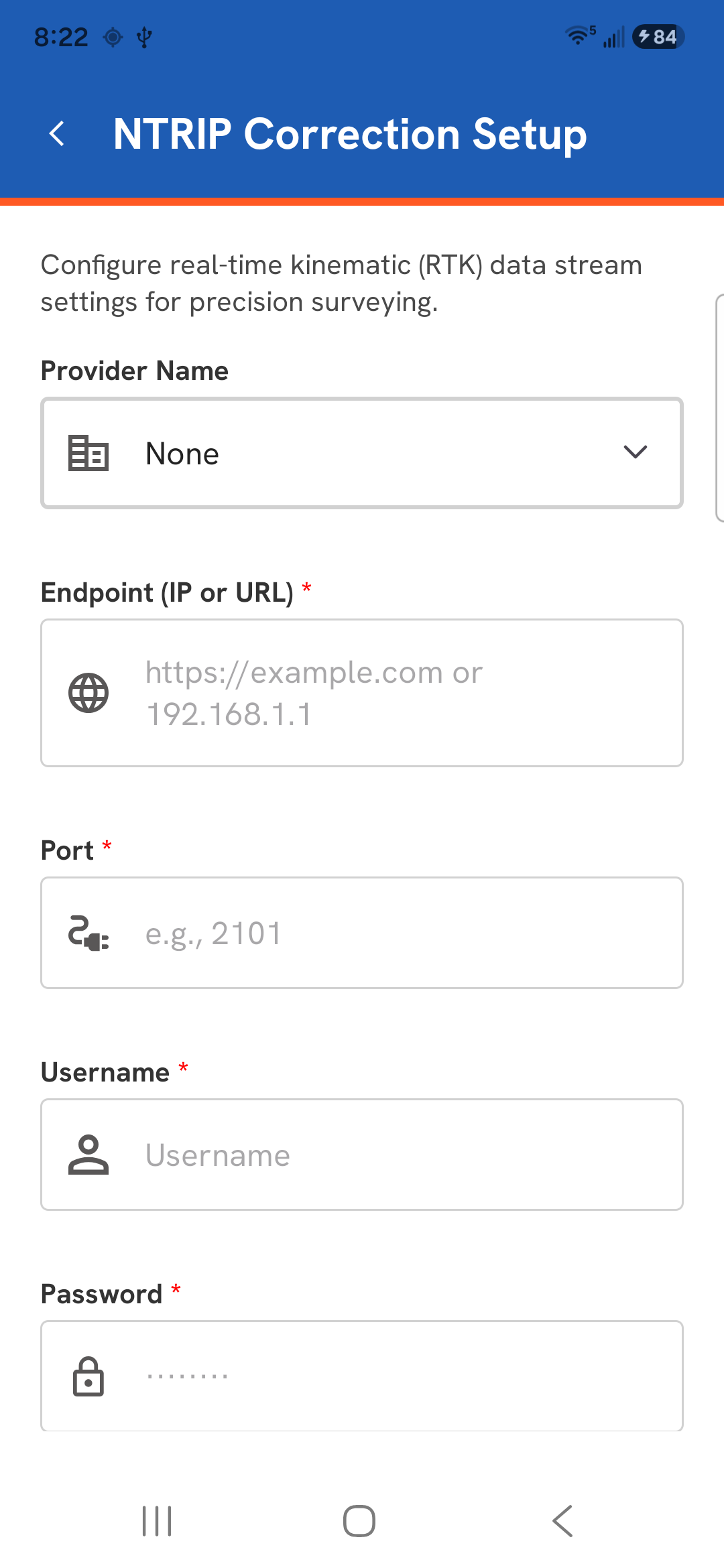
If you have selected a pre-configured service:
Enter Credentials: Provide the Host (Endpoint), Port, Username, Password, and Mount Point. The Mount Point should start with a forward slash.
Connect: Tap the Connect button. A progress dialog shows the connection status. Once successful, the status shows as Configured.
|
|
|
Custom Provider
You can add service providers with their specific endpoints and mount points or edit and delete existing ones for easier selection in the future.
|
 |
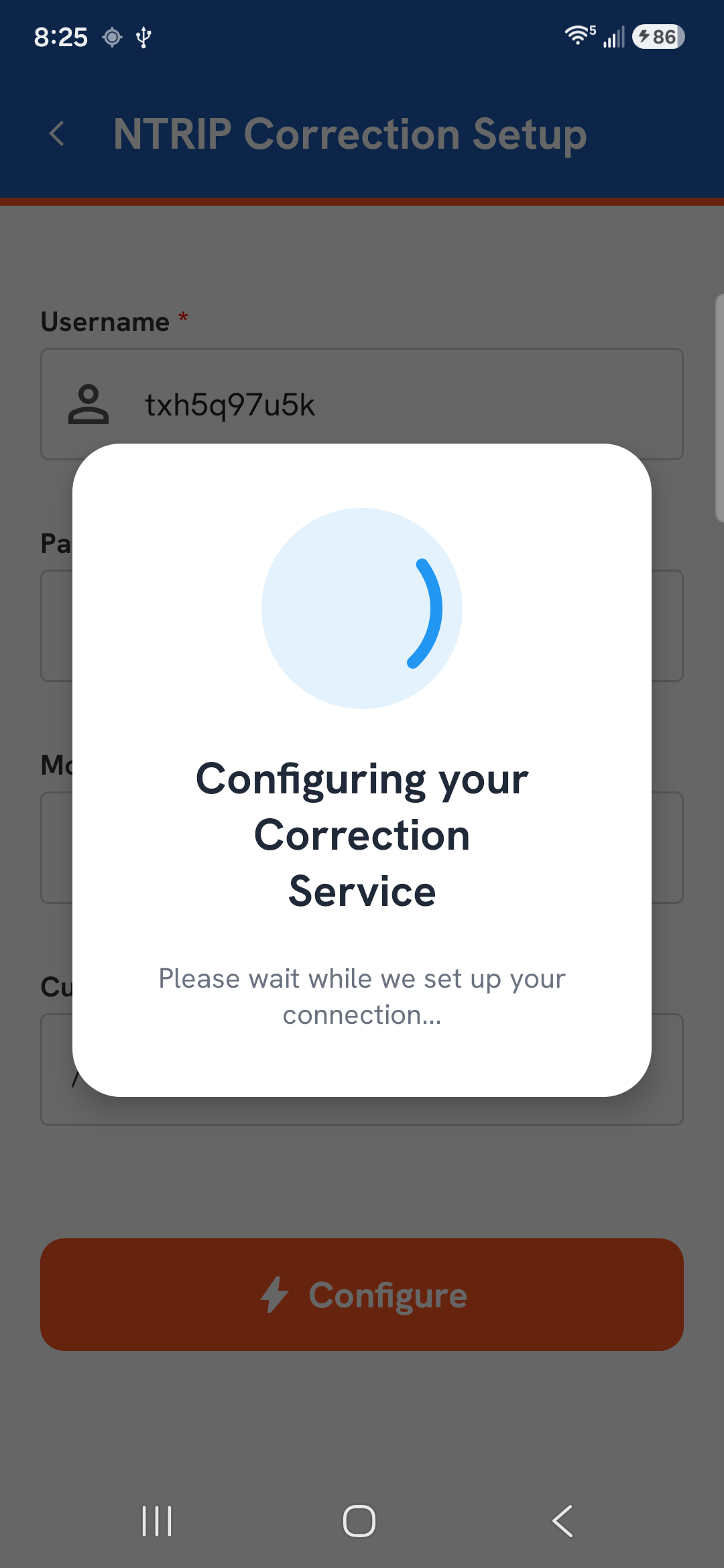
| After entering all of the credentials for your corrections service, tap Configure to test the corrections service connection. |
 |
|
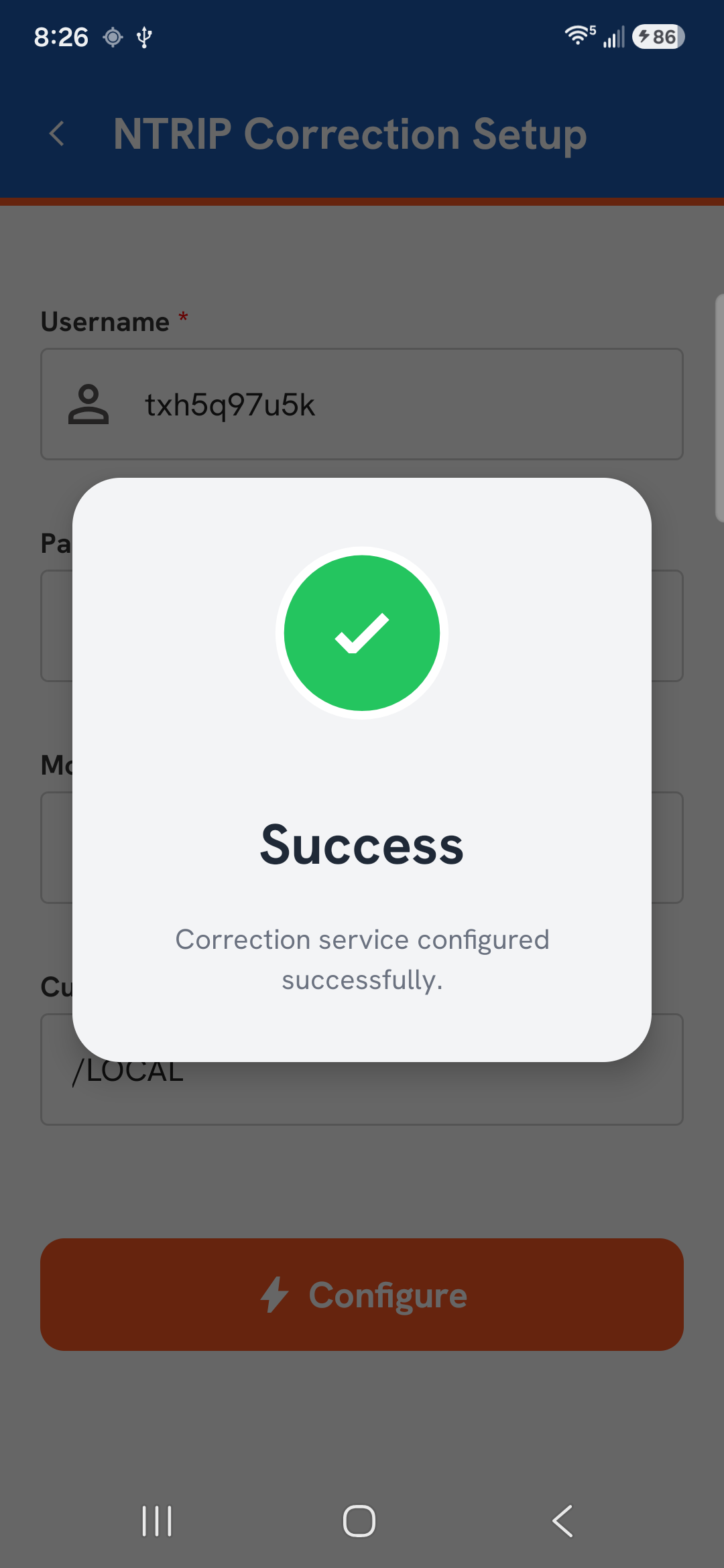
If the connection was successful to the corrections provider, you will receive a success confirmation.
|
 |
Main home dashboard
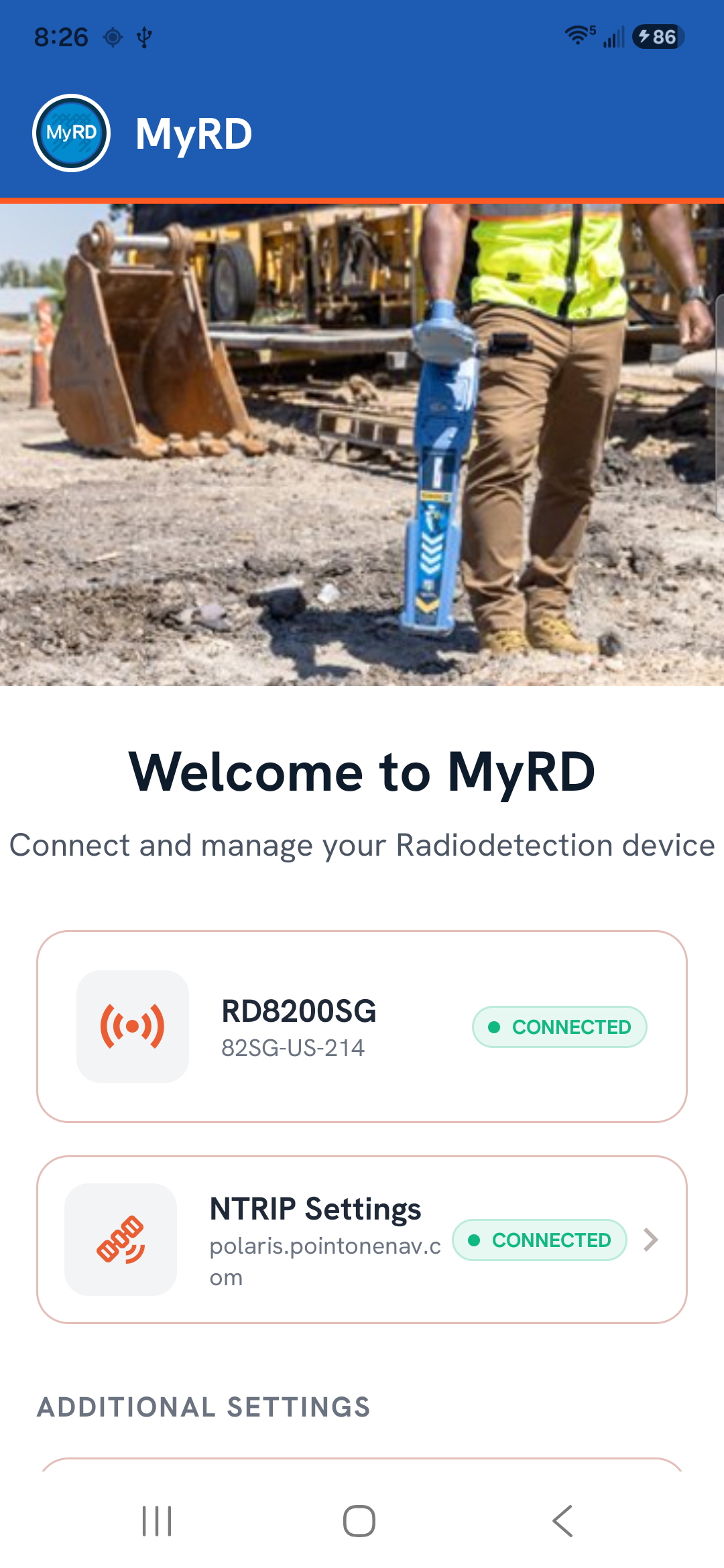
| When both the device and NTRIP connections are active, the screen indicates a successful connection. |
 |