Before using the 'Over The Air' (OTA) updater with MyRD, make sure you have completed the locator setup described in Set up the locator.
Firmware Updater (RD8200SG and MRXSG only)
OTA updater is currently only supported only for SG units running the following production firmware versions:
- 82SG: 6200.011
- MRXSG: 8000.011
Mobile device: Standard Android phone with OS 13+ having BLE 5.0+
Users with older firmware will first need to update their locator using a USB cable and RD Manager Online for PC. Once their locator is running the required version, they will be able to use MyRD for future supported OTA firmware updates.
|
Check for firmware updates
Ensure that the locator is switched OFF.
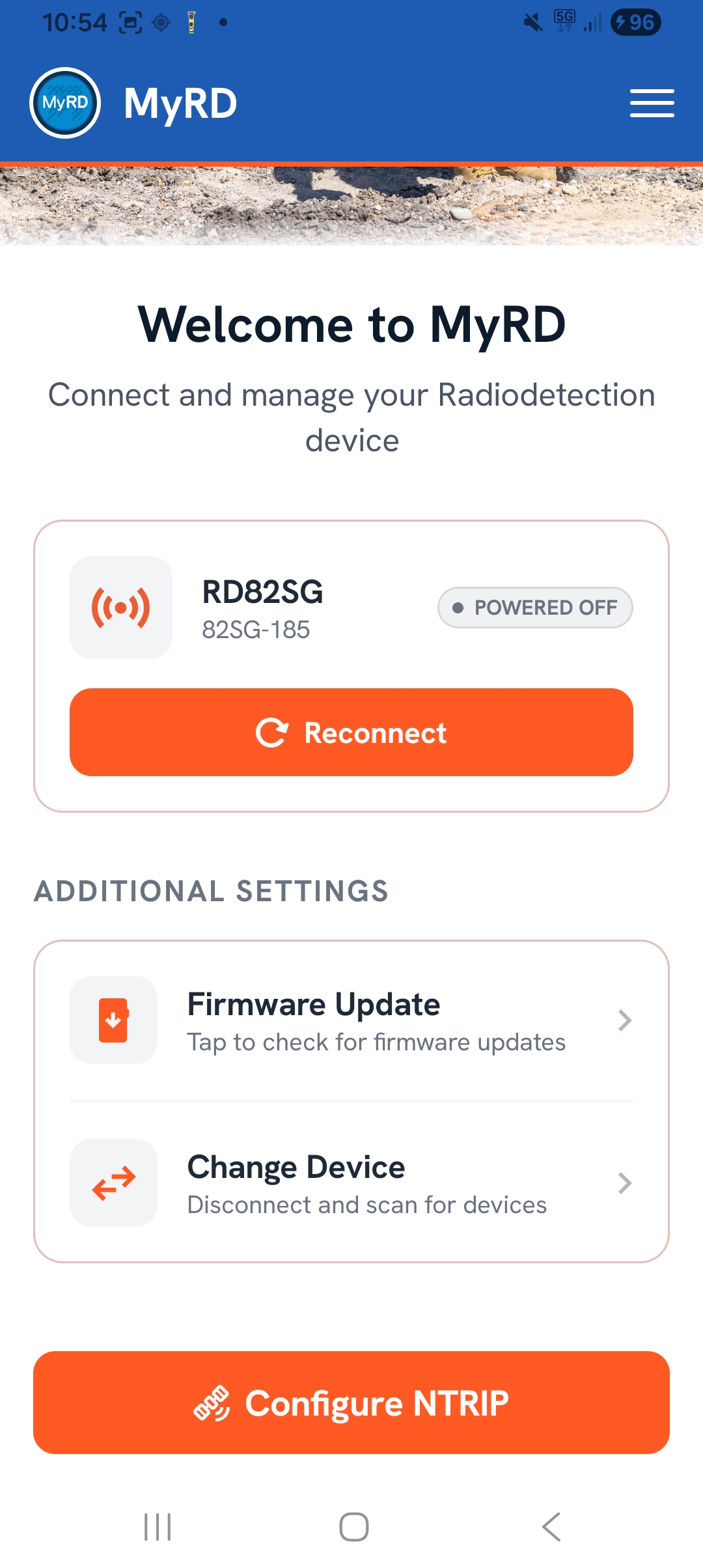
Tap on the Firmware Update option to check for any available firmware updates for your paired locator.
|
 |
|
While the locator is switched OFF.
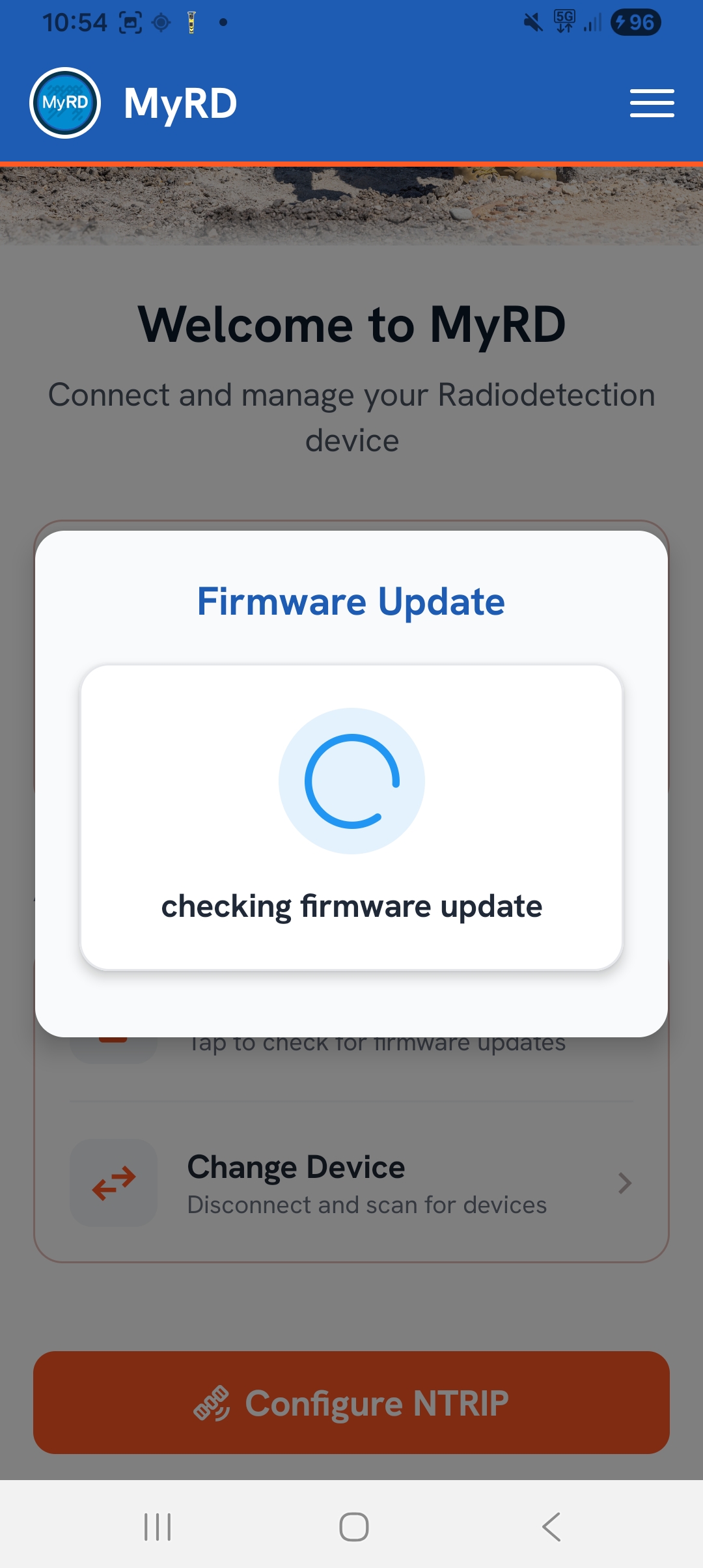
The MyRD app firmware updater will automatically connect to the paired locator.
An MyRD notification will appear to inform you that it is checking the firmware version.
The locator will power on and READY will be displayed on the locator screen.
|
 |
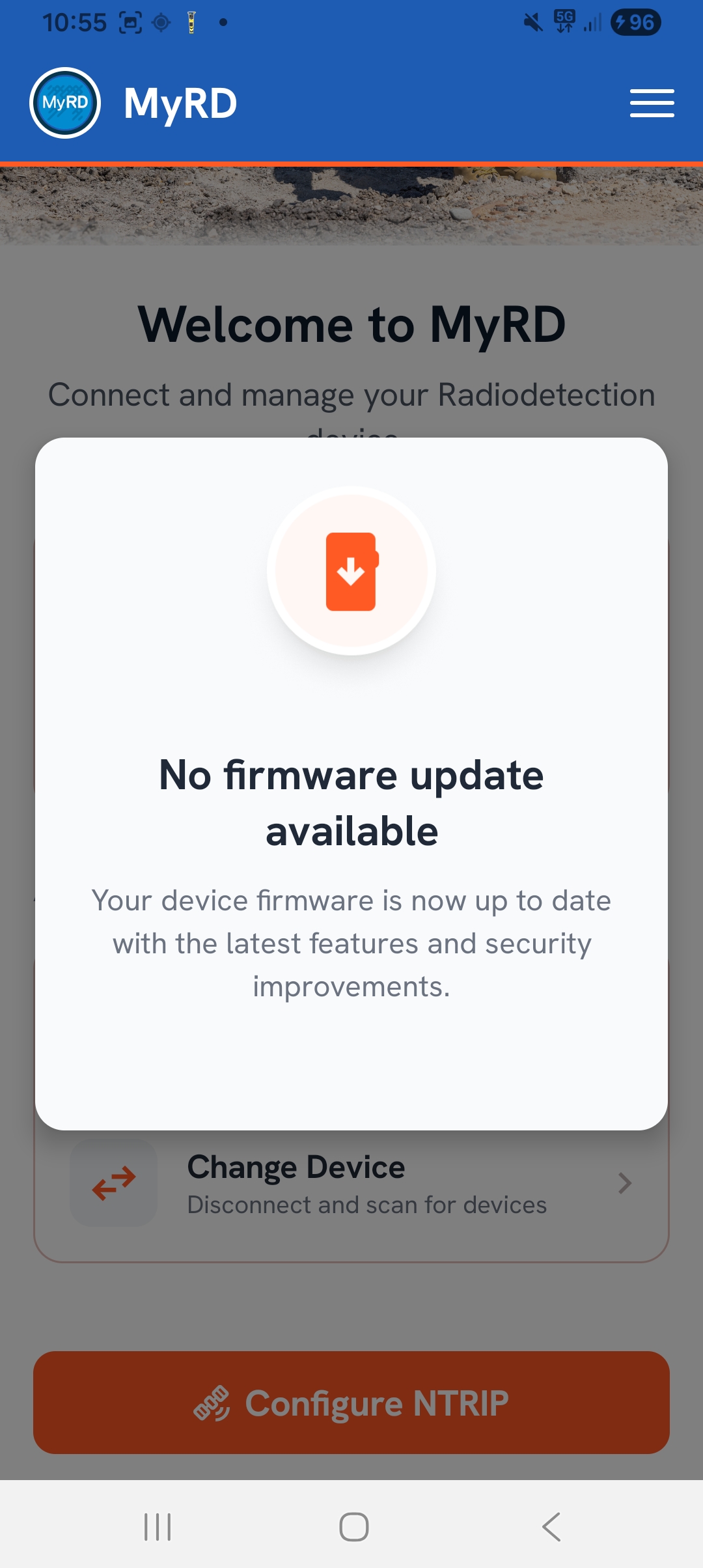
| If there is no firmware update available for the connected locator a MyRD notification will appear on the app to inform you. |
 |
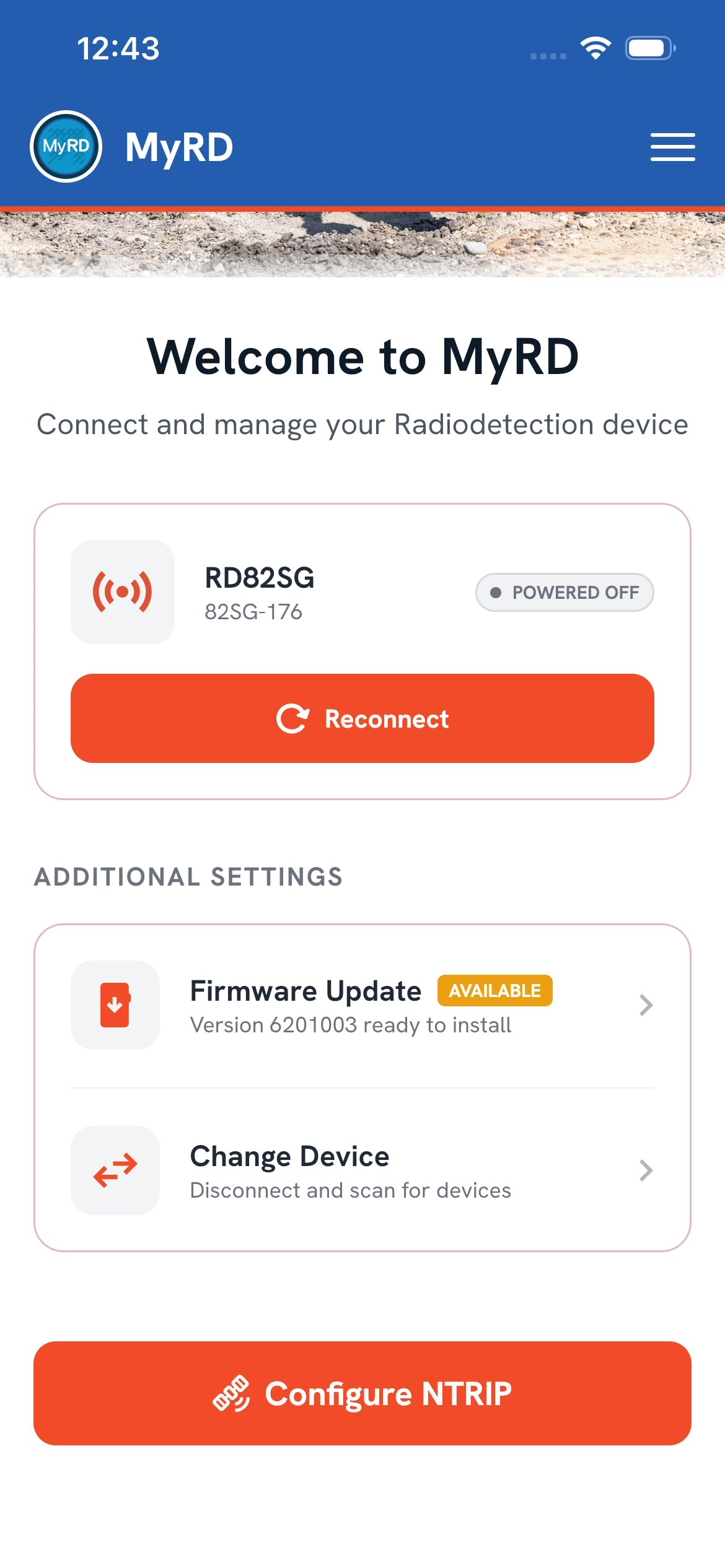
| If there is a firmware update available for the connected locator a MyRD notification will appear on the app to inform you. |
 |
|
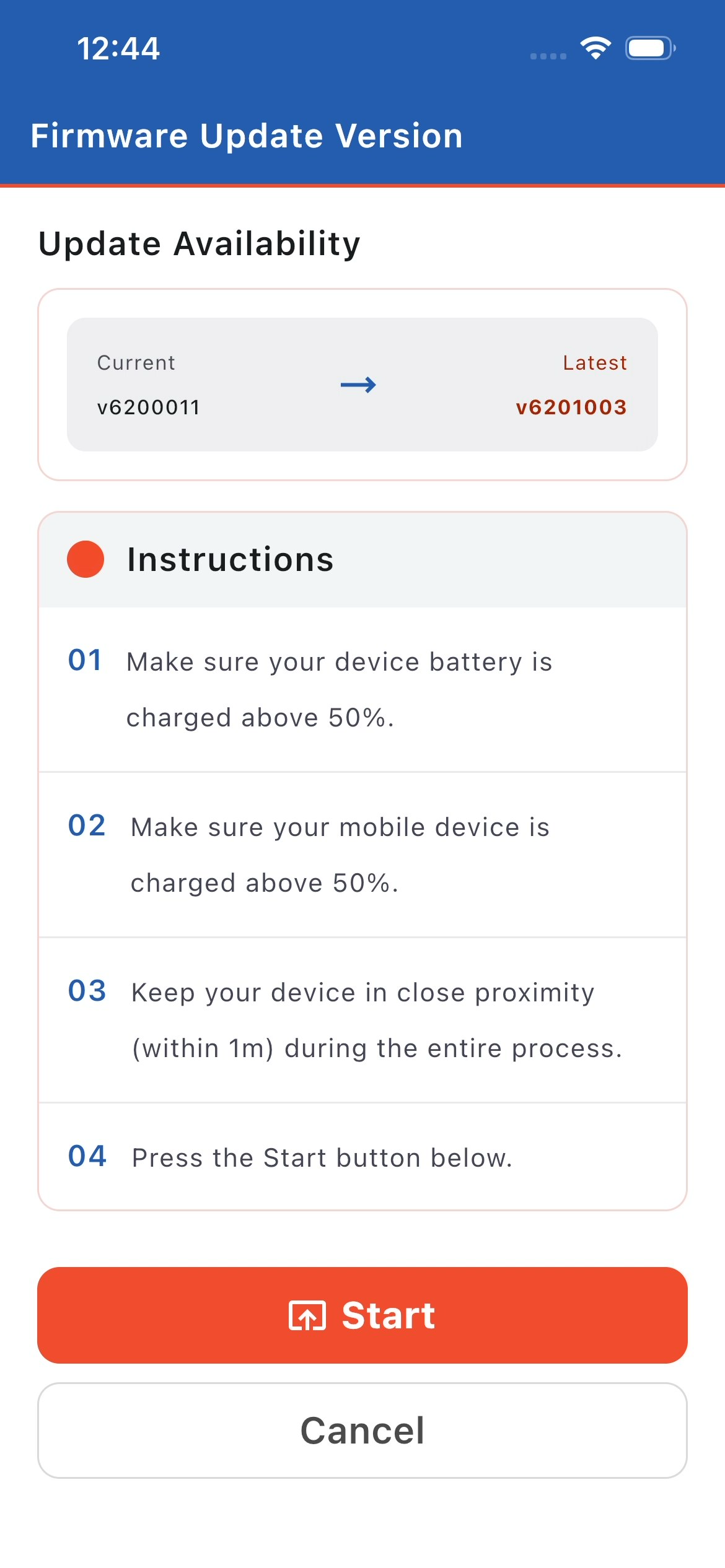
Tap the Start button on the Instruction screen to navigate to the Download screen, where the latest firmware version will be downloaded from the cloud.
|
 |
|
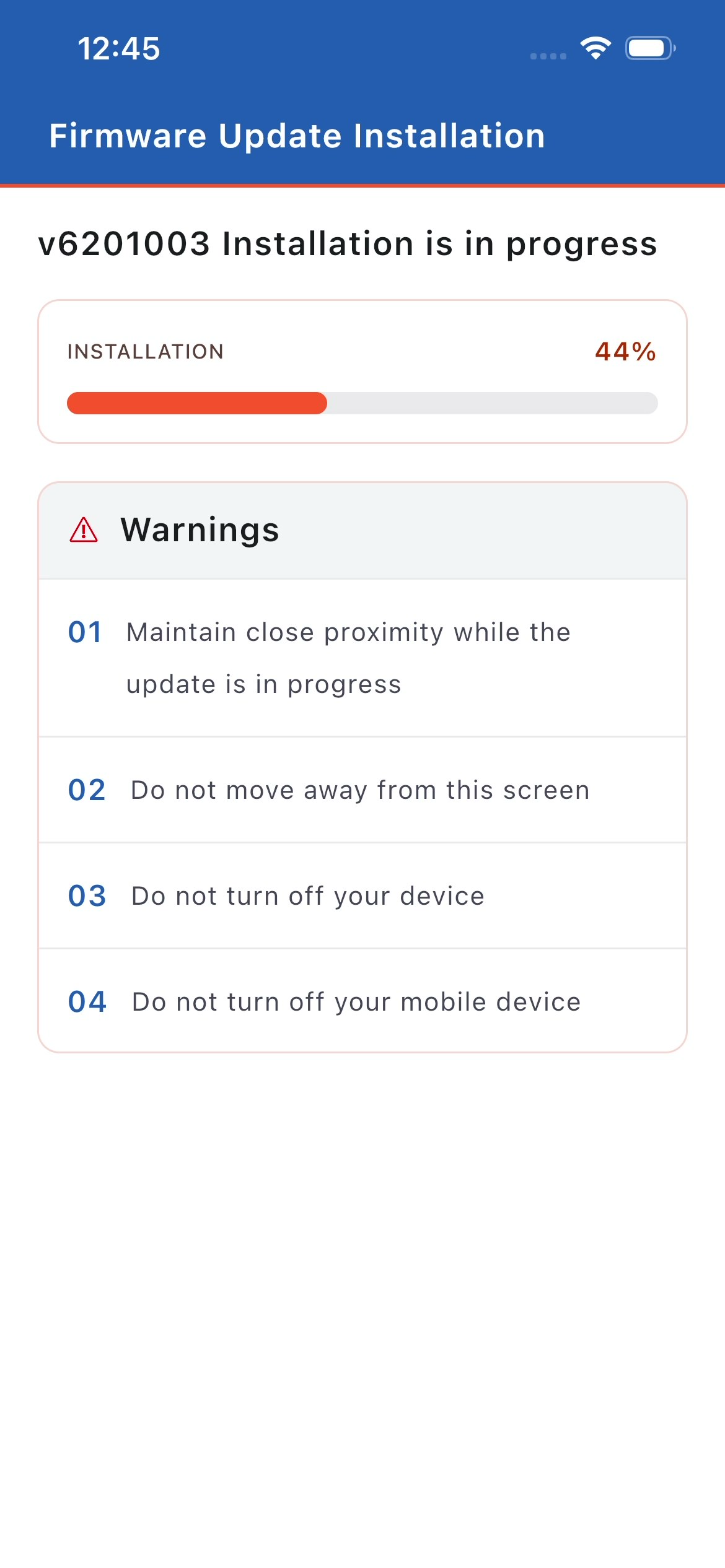
Tap the Install button to begin installing the latest firmware version on the locating device.
The app will navigate to the 'Firmware Installation Progress' screen, which displays the installation status and progress.
Do not move the app to the background while the firmware installation is in progress.
|
 |
|
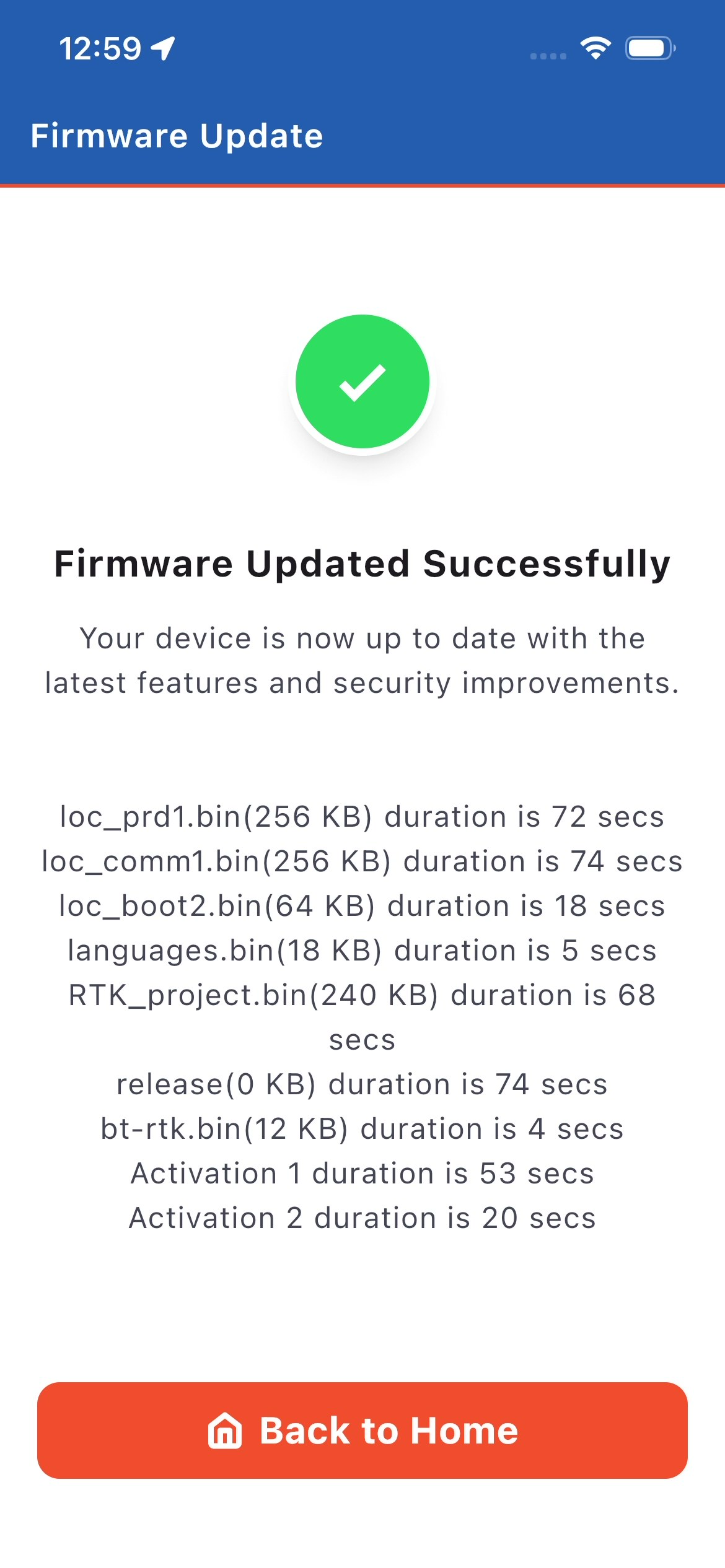
Once the firmware installation is complete, a success screen will appear displaying the message “Firmware Updated Successfully.”
Tap the Back to Home button to return to the Home screen.
|
 |
Main home dashboard
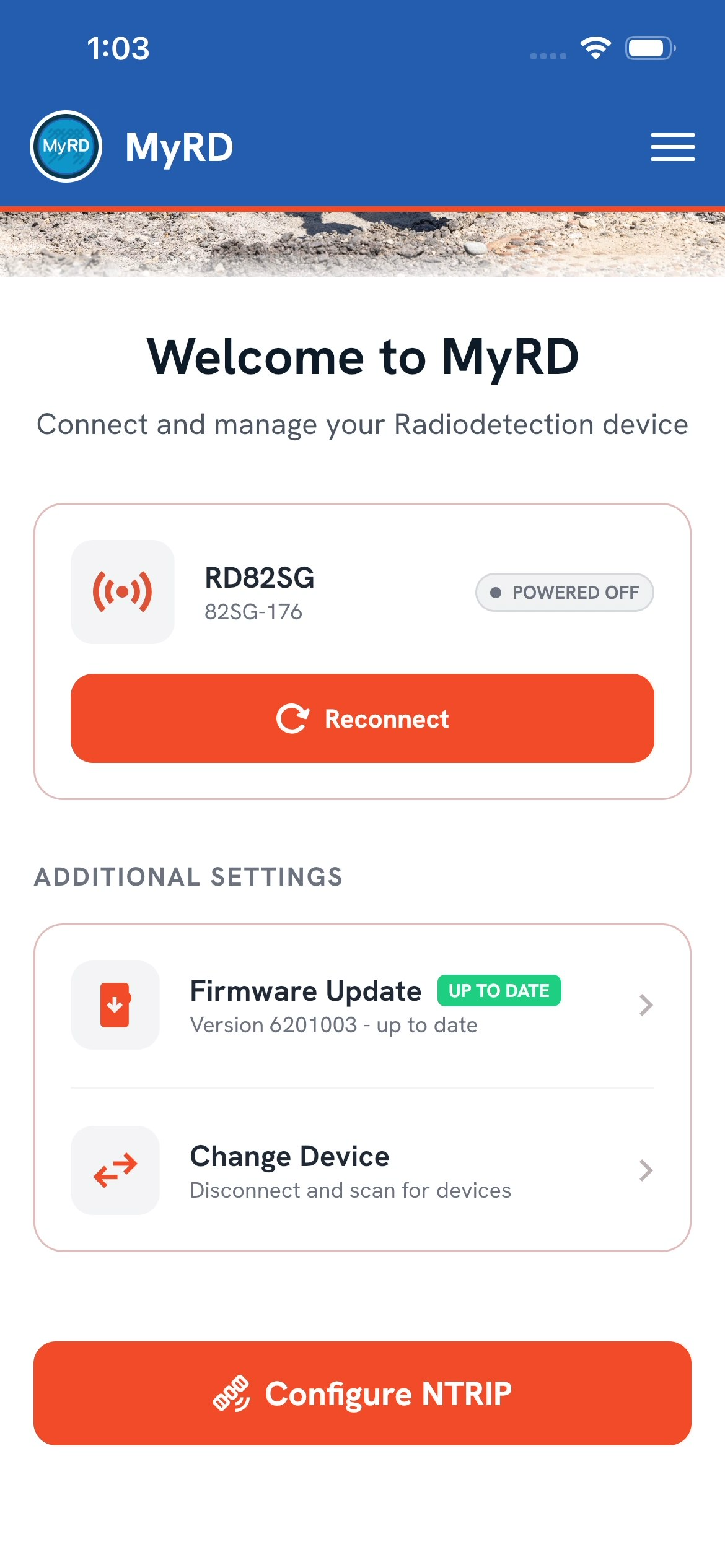
| Back on the 'Home' screen the firmware card will display Up to Date, showing the newly installed version. |
 |